


Best App to Limit Gaming on iPhone (2026)

 X
X LinkedIn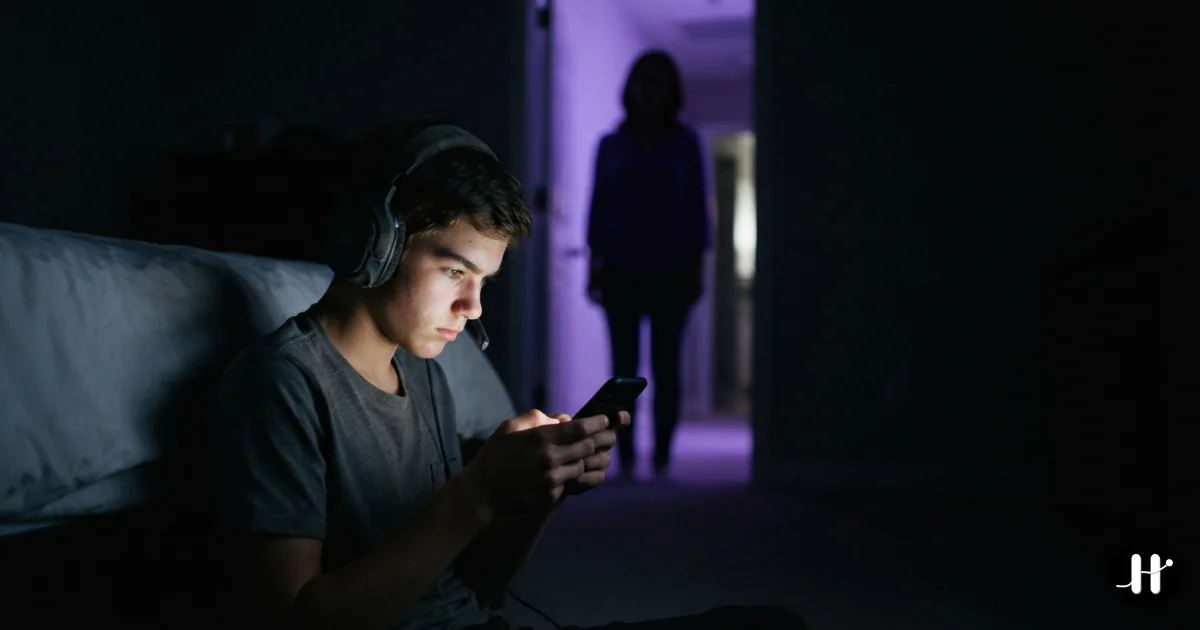
"Just one more match" turns into two hours
You meant to play for ten minutes. Then the round ran long, then there was a daily reward to collect, then a battle pass to grind, and now it is past midnight and the homework or the gym or the actual work is still untouched. Sound familiar? Mobile games are designed to do exactly this. They run on the same loop of variable rewards and streak pressure that powers slot machines, and they are very good at it.
The average mobile gamer now spends around 8.5 hours a week playing, roughly 1.2 hours a day, according to a 2026 roundup of mobile gaming time data (drawing on Statista and Udonis figures). For plenty of people that is fine. For a kid who should be sleeping, or an adult whose "quick break" eats the evening, it is a problem worth solving.
This guide splits into two real situations, because the right tool is different for each:
- A parent limiting a kid's gaming. Apple's own Screen Time, locked behind a passcode you control, is the correct baseline and it is free.
- An adult limiting their own gaming. Self-set limits fail because you hold the keys. You need something harder to undo on impulse.
Let me walk through both.
For parents: Apple Screen Time is the right baseline
If you are setting limits on a child's iPhone, start with the tool Apple built for exactly this. It is free, it is already on the device, and when it is configured correctly, a young child genuinely cannot get around it.
Screen Time can limit games specifically. In Settings under Screen Time, App Limits lets you set a daily time cap on the whole Games category, or on individual games. You can also schedule Downtime, a window where games (and other apps you choose) are simply unavailable, which is useful for school nights and bedtime. Apple's support documentation confirms you can set a time limit for a category of apps such as Games or for individual apps.
The part that makes it work is the passcode plus Family Sharing. Set a Screen Time passcode that your child does not know, and manage their device through Family Sharing. With that in place, the child cannot change the limits, turn off Downtime, or delete the restrictions. When they hit a limit, they can send you a request for more time, and per Apple Support, you can approve or deny that request right from your own device. That request-and-approval flow is the whole point. It keeps you in the loop instead of handing the kid a passcode.
For a younger child, that is usually enough. There is no reason to pay for a third-party app when Apple's free tool, used properly, holds.
Where it starts to leak: older kids and teens are more resourceful. They figure out that force-quitting some blocker apps disables them, that a factory reset wipes restrictions, or that deleting and reinstalling an app can reset its state. Apple's own Screen Time is fairly robust here because it is part of the operating system, but many third-party parental apps are not. If you are managing a determined teenager rather than a six-year-old, that is the moment tamper resistance starts to matter, which brings us to the second situation.
For adults: the problem is that you hold the keys
Here is the uncomfortable truth about limiting your own gaming. Every limit you set, you can lift. You chose the Screen Time passcode, so you know it. When the "Time Limit" screen appears, there is an "Ignore Limit" button one tap away. In the moment of wanting to play, the part of your brain that set the limit this morning is not the part making the decision tonight.
So self-control for adults is less about the limit existing and more about how much friction stands between you and undoing it. There are two approaches that add real friction.
Approach 1: scheduled blockers (Opal, Freedom)
Scheduled blockers let you pick hours when games are simply off. You set "no games 9am to 5pm" or "no games after 11pm," and the app enforces it.
Opal uses a device-level configuration profile, which makes it one of the harder iOS blockers to undo on a whim. It has polished analytics and group sessions. Opal leans premium: its free tier is thin, and full functionality runs about $19.99/month or $99.99/year (roughly $8.30 a month billed annually), per Opal's pricing. If your gaming problem is time-of-day shaped (you game when you should be working), scheduled blocking fits well, and Opal does it cleanly.
Freedom does the same idea across every device you own: iPhone, iPad, Mac, Windows, and Android. It costs around $8.99/month or less on an annual plan, per Freedom's pricing, and its "locked mode" stops you ending a session early. If your gaming jumps between phone and laptop, Freedom is the only one here that covers all of it at once.
Scheduled blocking has one real limitation. It is tied to the clock, not to whether you actually did anything. The games unlock at 5pm whether or not you finished your work. For some people that is fine. For others, the clock is exactly the wrong trigger.
Approach 2: lock games until your responsibilities are done
The other approach flips the logic. Instead of blocking games during set hours, it keeps them locked until you have done the things you keep putting off, and then unlocks them as the reward.
This is what Habit Doom does. You pick the games you want gated (and any other distracting apps), you set your daily habits (study for an hour, hit the gym, finish the deep-work block, whatever your real responsibilities are), and the games stay locked until those habits are checked off. Finish them, and everything unlocks automatically. The enforcement happens at the iOS ManagedSettings layer, the same operating-system level Apple's own Screen Time uses, so there is no "Ignore Limit" button to tap through.
Why does this matter for gaming specifically? Tamper resistance. A lot of blockers fold the moment you force-quit the app or delete and reinstall it. Habit Doom is built to survive both: the lock holds even if the app is force-quit, and it persists through an uninstall and reinstall. That removes the two easiest impulse escapes, the same two a determined teenager reaches for first. It is the difference between a limit that is a suggestion and one that actually costs you something to break.
A free feature called Anti-Cheat (free for everyone, not a paid add-on) goes further: when you check off a habit, it can require a real-time photo, which an AI model running on the iPhone verifies against the habit in under half a second. The photo never leaves the device. The point is to stop the most common self-cheat, which is tapping "done" on a habit you did not actually do just to unlock the game.
Habit Doom is free to download and use. The free tier covers up to 3 habits, app blocking, custom alarms, and streaks, with no ads. Pro is $4.99/month, $19.99/year (with a 7-day free trial), or $29.99 lifetime, and adds unlimited habits, Hard Mode, and advanced analytics. It is on iPhone and Android.
Side-by-side: limiting gaming on iPhone
Here is how the options compare. Scroll the table horizontally on mobile if needed.
| Tool | Price | How it limits games | Bypass resistance | Best for |
|---|---|---|---|---|
| Apple Screen Time | Free | Daily limit on Games category or single games, plus Downtime | High for a young child with a parent-held passcode and Family Sharing; low for self-control (you know the passcode) | Parents of younger kids; a free first try for anyone |
| Opal | ~$8.30/mo billed annually | Scheduled focus sessions block games during set hours | Hard (device profile) | Adults whose gaming is time-of-day shaped |
| Freedom | ~$8.99/mo (less annually) | Scheduled cross-device sessions, locked mode | Medium to hard (locked mode) | People who game across phone, laptop, and tablet |
| Habit Doom | Free tier; Pro $4.99/mo, $19.99/yr (7-day trial), $29.99 lifetime | Games stay locked until daily habits are done | Hard (ManagedSettings; survives force-quit and uninstall) | Anyone who wants gaming earned, not scheduled; and tamper resistance |
A fair note on the parental side: for managing a young child specifically, Apple's Family Sharing plus a Screen Time passcode is the baseline you should reach for first, and it is enough on its own. Third-party tools earn their place when you need tamper resistance the built-in tools do not give you, for an older kid who works around things, or for yourself.
How to choose
Limiting a young child's gaming? Use Apple Screen Time. Set a Games category limit and Downtime, lock it behind a passcode the child does not know, and manage it through Family Sharing so they have to request more time. Free, and it holds.
Limiting a teenager who works around Screen Time? Start with Screen Time, then add a tamper-resistant layer for the games that matter most. A blocker that survives force-quit and reinstall closes the easy escape routes.
Limiting your own gaming on a schedule? Opal or Freedom. Pick your no-gaming hours and let the app enforce them. Opal if you live on iPhone, Freedom if your gaming spreads across devices.
Limiting your own gaming by tying it to getting things done? Habit Doom. The games stay locked until your real responsibilities for the day are finished, and the lock does not fold the second you try to force-quit it.
The honest close
Disclosure: we built Habit Doom, so weigh that as you see fit. We have tried to recommend each tool for what it is genuinely best at. For a young child, the free Apple tools really are the right answer, and you should not pay for what Screen Time already does.
Habit Doom is for a narrower case: when limiting gaming by the clock has not stuck, and you want it tied to actually doing the thing you have been avoiding. The games become the reward for finishing, not the thing that swallows the evening before you start. If that is the pattern you are stuck in, it is worth two weeks. For a wider look at iPhone blockers, see our best app blockers for iPhone roundup or the Screen Time alternatives that actually work guide.
Frequently Asked Questions
Keep Reading
Try Habit Doom
Lock your distracting apps. Complete your habits. Earn your screen time. It takes 30 seconds to set up.
Download Free