


Lock Instagram Until You Earn It

 X
X LinkedIn
If you searched "app to lock Instagram on iPhone," you have probably already tried the obvious thing: Apple Screen Time. You set a 30-minute daily limit, felt good about it for two days, and then started tapping Ignore Limit on autopilot. The limit is real. The lock is not.
This is the gap most Instagram blockers leave open. Some show you a wall you can dismiss. Some add a delay you just wait out. Very few keep the app shut until a real condition is met. This guide compares the locking methods honestly, then explains the one approach built around earning access rather than merely restricting it.
US Instagram users average 33.1 minutes a day across all devices, according to Backlinko's 2026 Instagram statistics. For Gen Z the figure is higher. Half of all time on Instagram now goes to Reels, the format engineered to make you forget you opened the app at all. A lock you can dismiss with one tap is not going to dent that.
The four ways to lock Instagram, and what each really does
There are four distinct approaches, and they are not interchangeable. Picking the wrong one is why people conclude "blockers don't work for me."
Hard schedule (Apple Screen Time). You set a daily time limit or a downtime window. When it hits, iOS shows a wall. The problem is the Ignore Limit button. It is one tap, it asks for nothing, and it grants more time instantly. For a determined scroller this is a speed bump, not a gate. Full breakdown in the Screen Time API guide.
Friction delay (One Sec, ScreenZen). Instead of blocking, these intercept the moment you tap the Instagram icon and make you wait, breathe, or confirm you really want to open it. The delay is genuinely good at killing reflex opens, the unconscious "pick up phone, tap Instagram" loop. But it is an interruption, not a lock. After the delay, Instagram opens anyway. If your problem is reflex, this helps a lot. If your problem is intention ("I know I shouldn't, and I'm going to anyway"), the delay just becomes a little ritual you perform before scrolling.
Session and schedule locking (Opal). Opal blocks apps during sessions or scheduled focus blocks and is harder to bypass than Screen Time. It is a strong tool for people who want timed deep-work windows. The lock is tied to the clock, not to whether you actually accomplished anything during it.
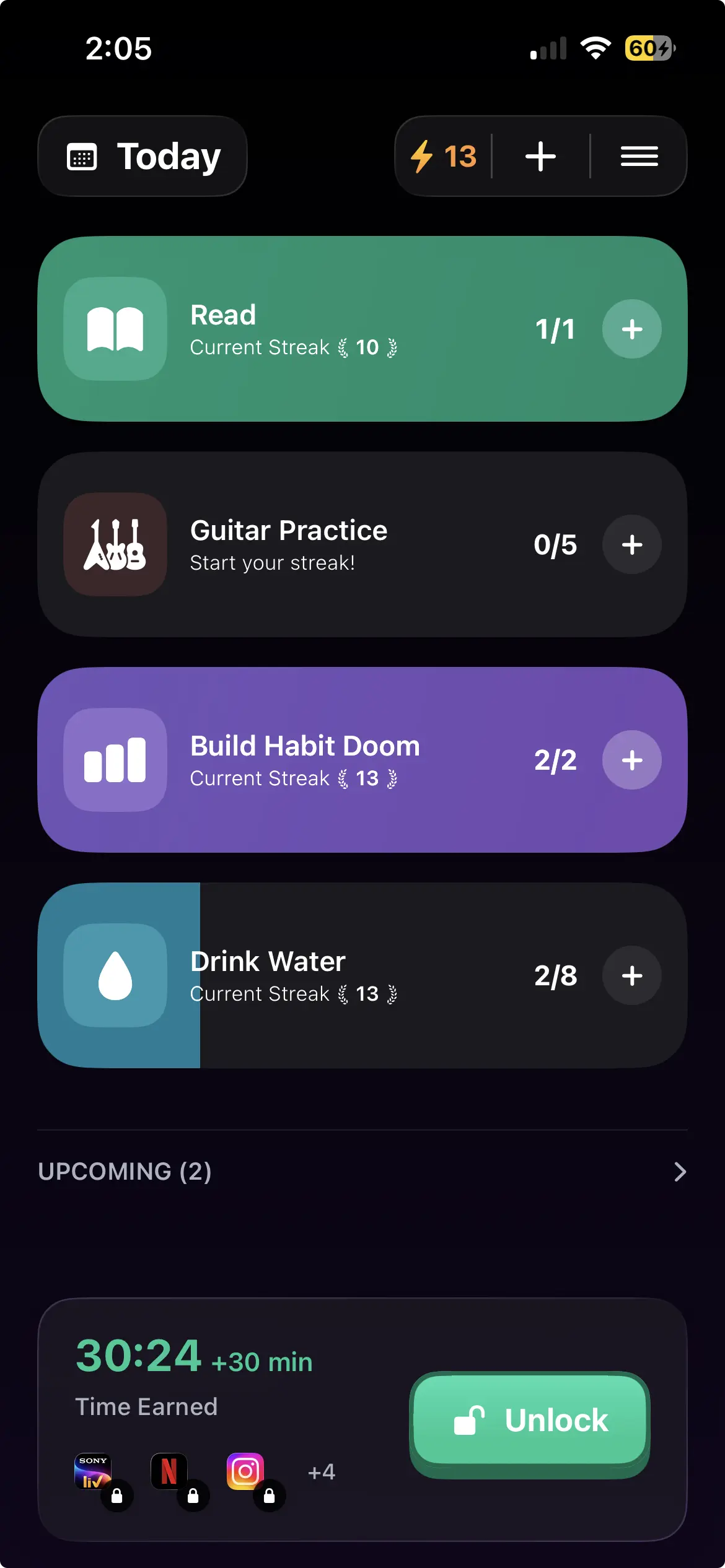
Conditional locking (Habit Doom). Instagram stays locked until you complete the daily habits you defined. The lock is not tied to a clock or a delay. It is tied to whether you did the thing. Read 20 pages, work out, journal, whatever you set. The app unlocks when the habits are checked off, and not before.
These are different tools for different failure modes. The next section is about matching them.
Which one matches your problem
Be honest about why Instagram keeps winning, because that determines the right lock.
| Your problem | Best fit |
|---|---|
| You open Instagram by reflex without deciding to | Friction delay (One Sec, ScreenZen) |
| You want quiet hours with nothing complicated | Apple Screen Time downtime |
| You want timed deep-work blocks | Opal sessions |
| You open it instead of doing things you care about | Conditional locking (Habit Doom) |
| You dismiss every limit you have ever set | Habit Doom Hard Mode |
The last two rows are the reason this post exists. If you have tried Screen Time and beaten it, then tried a delay app and waited it out, the missing ingredient was never a longer timer. It was a reason to keep the app shut that you could not wave away. A condition you satisfy with action, not patience.
Comparison: how each locks Instagram
Honest cells. Every tool here is good at something.
| Method | What it does | Can you bypass it | Best for |
|---|---|---|---|
| Apple Screen Time | Daily limit or downtime wall | Yes, one-tap Ignore Limit | A loose, free guardrail |
| ScreenZen | Delay and friction before opening | Yes, after the delay | Killing reflex opens |
| One Sec | Breathing pause before opening | Yes, after the pause | Adding intention |
| Opal | Session and scheduled blocking | Harder, but time-based | Timed focus windows |
| Habit Doom | Locks Instagram via iOS ManagedSettings until daily habits are done | Hard Mode allows no early unlock; lock survives force-quit and uninstall | Earning access by completing habits |
Screen Time is free and built in, and for a lot of people a loose guardrail is genuinely enough. The delay apps are excellent at the reflex problem and worth installing if that is your pattern. Opal is the pick for scheduled focus sessions. Habit Doom is the one that ties access to whether you actually did your habits, which is a different promise entirely.
How Habit Doom locks Instagram specifically
The mechanism matters, so here is exactly what happens.
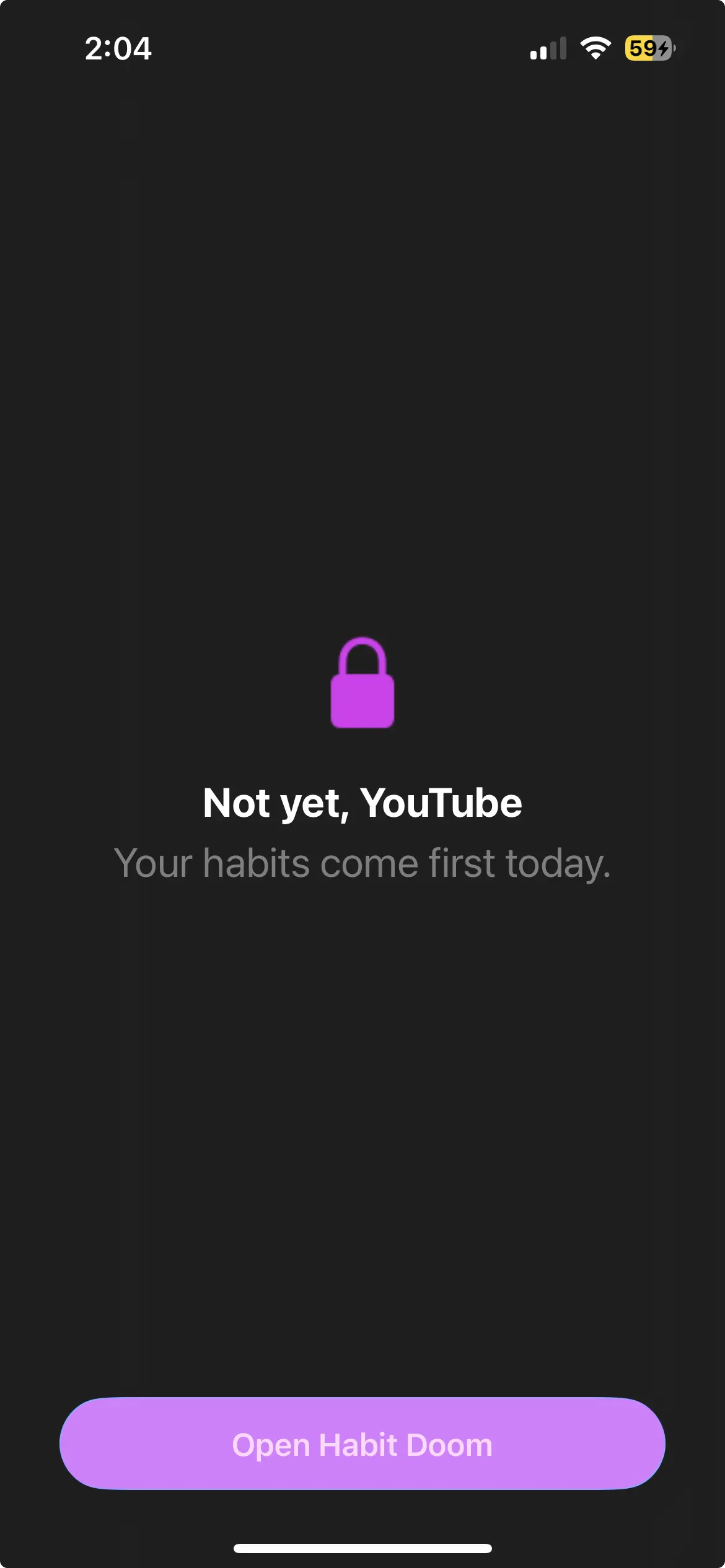
You pick which apps to lock. Instagram, and as many others as you want (TikTok, X, YouTube, the usual suspects). You set your daily habits. In the free tier you get up to 3, which is enough for a morning routine or a single keystone habit. Then Habit Doom hands the blocking over to iOS at the ManagedSettings layer, the same system-level API Apple uses for parental controls.
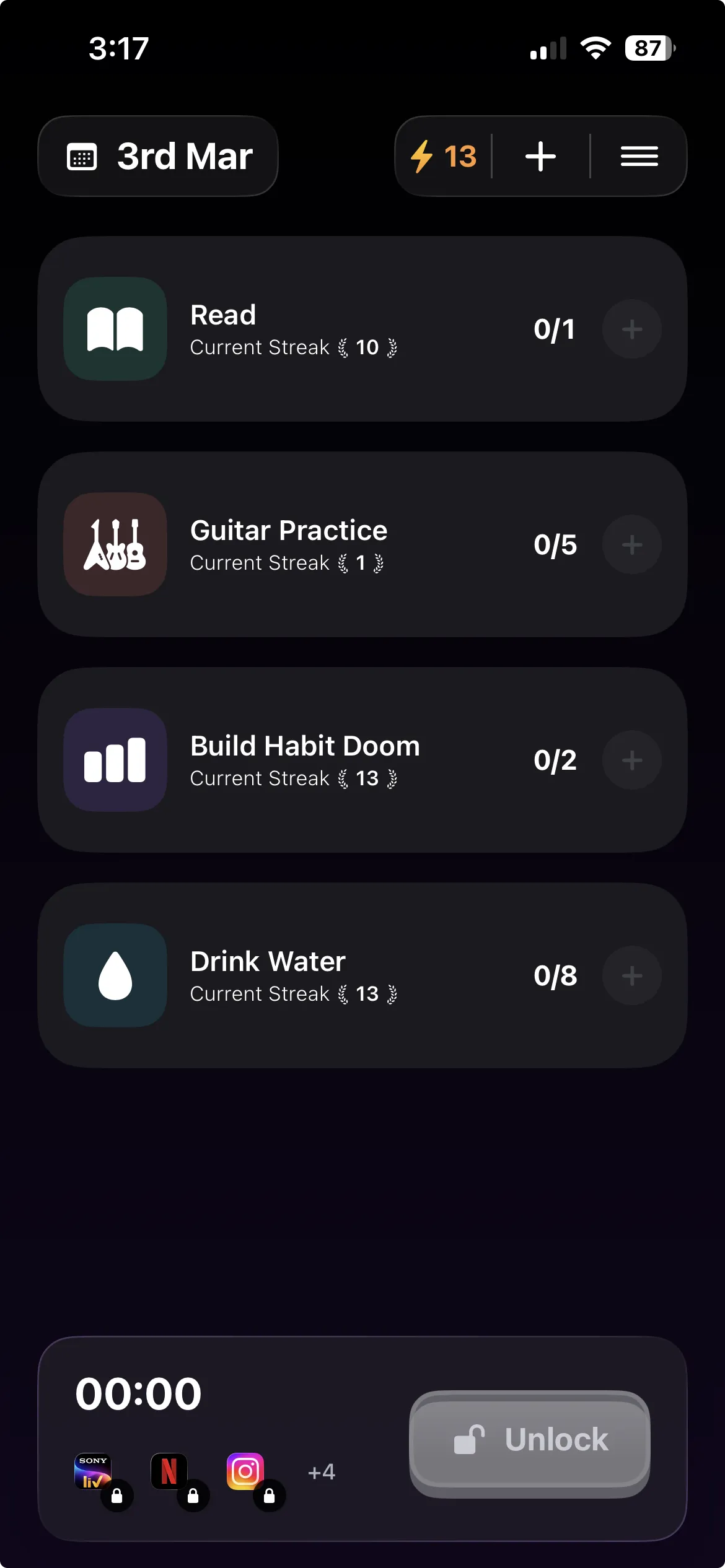
Until those habits are checked off, Instagram is greyed out and will not open. When you complete them, the lock lifts. The next day it resets. There is no "skip" button and no Ignore Limit equivalent.
Two design choices make the lock hold where others fail:
It survives force-quit and uninstall. Because the block lives in iOS ManagedSettings and not in the app's foreground process, swiping Habit Doom away does nothing to Instagram. Deleting Habit Doom does not instantly restore access the way flipping an in-app switch would. This is deliberate tamper resistance for the exact moment you are most tempted to dismantle your own system. We wrote up the engineering behind no-bypass blocking in apps that actually block doomscrolling.
Hard Mode removes the escape hatch. Standard mode lets you adjust things. Hard Mode commits you: once it is on, Instagram stays locked until the habits are genuinely done, with no early unlock. It exists for people who know they will negotiate with themselves at 7am.
There is one more layer arriving in June 2026 worth knowing about, because it closes the obvious loophole.
The check-in loophole, and Anti-Cheat
If completing a habit is what unlocks Instagram, the lazy move is to tap "done" without doing it. Habit Doom users flagged this themselves, in App Store reviews and elsewhere, and asked to be policed.
Anti-Cheat (free, shipped June 2026) closes it. When you check in a habit, the camera opens and you snap a real-time photo: the open book, the running shoes, the journal page. An AI model running entirely on your iPhone confirms the photo matches the habit, usually in under half a second. No photo leaves the device, there is no account, and the App Store privacy label stays at zero collected data. The full story is in the habit tracker you can't lie to.
The point is structural: a lock that unlocks on a tap is only as honest as the tap. Verified check-ins make the only way past Instagram the habit itself.
Setting it up in five minutes
A clean first run looks like this.
- Install Habit Doom and grant Screen Time permission. This is what lets it block apps at the iOS level. No login, no account.
- Add Instagram to the locked list. Add TikTok and YouTube too if they are part of the same problem.
- Set one to three daily habits. Start small. One keystone habit ("read 20 pages") beats five you will resent.
- Choose your mode. Standard if you are testing the waters. Hard Mode if you already know you will cave.
- Lock your phone and go to bed. Tomorrow, Instagram is shut until you earn it.
For specific setups, see block Instagram until you exercise and lock social media until your morning routine is done. If TikTok is the bigger pull, the same comparison for locking TikTok on iPhone is here.
The honest take
No app fixes a habit on its own. If you genuinely do not want to change, you can stand by a fake photo, you can turn Hard Mode off the night before, you can find a way. Every tool here can be defeated by someone determined to defeat it.
What conditional locking changes is the default. Instead of "Instagram is open, resist it," the default becomes "Instagram is closed, earn it." That flip is the whole game. Apple Screen Time gives you a wall you can dismiss. The delay apps give you a pause you can wait out. Habit Doom gives you a lock that opens only when you have done the thing you actually wanted to do instead of scrolling.
If your Instagram problem is reflex, install a delay app. If you want quiet hours, Screen Time downtime is free and fine. If you keep opening Instagram instead of living your day, the lock that wants something from you first is the one worth trying.
Habit Doom is free to download on the App Store, with the full locking system and Anti-Cheat free for everyone.
Frequently Asked Questions
Keep Reading
Try Habit Doom
Lock your distracting apps. Complete your habits. Earn your screen time. It takes 30 seconds to set up.
Download Free