


Apple Screen Time Isn't Enough. Here's What Is.

 X
X LinkedIn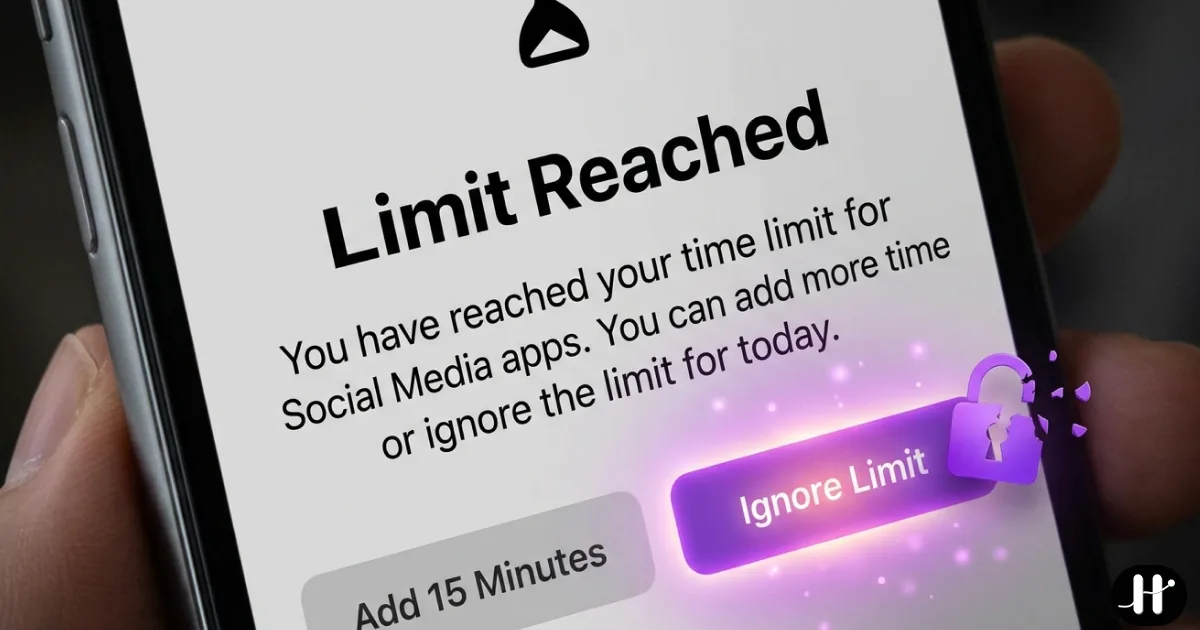
You set the limit. You tapped past it anyway.
You did the responsible thing. You opened Settings, set a 30-minute daily limit on Instagram, maybe scheduled some Downtime for the evening. For about a week it felt like progress. Then the limit screen showed up mid-scroll, your thumb found the Ignore Limit button, and the block was gone before you finished the thought.
That is not a willpower failure. That is the tool working exactly as designed.
Apple's built-in Screen Time is genuinely useful, and this post is not here to trash it. It is free, it ships on every iPhone, and as an awareness dashboard it is excellent. The problem is narrower and more specific: for a self-directed adult trying to enforce a limit on themselves, Screen Time hands you a one-tap escape hatch and then asks you not to use it. Most of us use it.
So the honest question is not "is Screen Time bad." It is "is Apple Screen Time enough for what you actually need." For some people it is. For most people trying to break a real habit, it is the floor, not the ceiling. Here is where it falls short, where it shines, and the ladder of stronger options when you need a block that holds.
What Screen Time is genuinely good at
Credit where it is due. Screen Time does three things well, and for a lot of people those three things are enough.
Awareness. The weekly report (which apps, how many pickups, how many notifications) is the best free usage dashboard on iOS. Seeing "4 hours, 312 pickups" in plain numbers is often the nudge that makes someone look for a real blocker in the first place.
Parental controls with a passcode the child does not know. This is the use case Screen Time was actually built for. When a parent sets the Screen Time passcode and the kid does not have it, the Ignore Limit prompt asks for that passcode, and the block holds. Apple even added a "Block at End of Limit" option so the One More Minute extension expires into a passcode wall rather than a free pass (Tech Lockdown). For managing a child's device, Screen Time is a legitimate first choice and it costs nothing.
A free enforcement layer underneath everything else. Even if you move to a third-party blocker, leaving Screen Time on for reporting costs you nothing and gives you the data.
The gap opens up the moment the person setting the limit and the person hitting the limit are the same person.
Why it falls short for you specifically
Three weak points, in order of how often they bite.
1. The Ignore Limit button on App Limits
When you reach a daily App Limit, iOS shows you options including One More Minute and Ignore Limit. Tapping Ignore Limit lifts the block (for 15 minutes or the rest of the day) in a single tap. No passcode, unless you have set a Screen Time passcode and turned on Block at End of Limit (Tech Lockdown).
And here is the catch that makes the passcode workaround mostly theater for adults: you know your own passcode. A parental control works because the kid does not have the code. When you set the code on yourself, the block becomes a four-digit speed bump you clear from muscle memory. The friction is real for about three days, then it is gone.
2. Downtime is dismissable too
Downtime is the scheduled version (apps dimmed during the hours you pick). It looks stricter, but unless Block at Downtime is turned on, the dimmed app shows a reminder that it is Downtime and then lets you tap straight through and keep using it (Apple Support). Turn Block on and you are back to the passcode you already know. Same escape hatch, slightly different doorway.
3. No tamper resistance
Screen Time was not built to defend against the person it is restricting. There are no checks for the obvious moves: changing the device clock to roll past a limit, or deleting and reinstalling an app to reset its counter. Apple has also had genuine bugs where App Limits silently stop firing after an update, which users spend hours trying to diagnose (iDownloadBlog). When the thing you are fighting is your own determined future self at 11pm, a system with no tamper checks is not built for that fight.
None of this makes Screen Time "broken." It makes it a parental control and an awareness tool being asked to do a self-enforcement job it was never designed for.
The ladder of stronger options
When Screen Time is not enough, you do not jump straight to the strictest possible lock. You climb a ladder and stop at the rung that matches how much you need the block to actually hold. There are three rungs.
Rung 1: Friction delays
These do not block. They slow you down. When you tap a target app, they interrupt with a breathing pause or a delay timer, then ask if you really want to continue. The point is to break the reflex, not to make the app impossible.
One Sec intercepts the open with a breathing exercise before asking if you still want in. It is about $19.99/year, with a lifetime unlock around $99.99 and a student discount (one sec store). ScreenZen does configurable per-app delay timers and is completely free, run on tips, with no premium tier (ScreenZen).
This rung is for people whose problem is the autopilot tap, not a hard compulsion. If a one-second pause genuinely makes you put the phone down, you may not need anything stronger. That is a good outcome, not a cop-out.
Rung 2: Scheduled blockers
These enforce real blocks on a clock you set in advance, using a device-level profile that is harder to wave away than the built-in Ignore Limit.
Opal runs scheduled focus sessions with detailed analytics and group accountability. It is $19.99/month, or $99.99/year (about $8.30/month billed annually), with a limited free tier (Opal pricing). Freedom blocks across iPhone, Mac, Windows, and Android at once, which is its real edge if you also drift on a laptop. It is $8.99/month or $39.99/year, with a lifetime option (Freedom premium).
Reach for this rung if your distraction maps to predictable hours (work blocks, evening wind-down) and you want analytics or cross-device coverage. The catch: the block is tied to the clock, not to anything you actually accomplish. The session ends whether or not you got your real work done.
Rung 3: Conditional locking
This is the top rung, and it is a different idea entirely. Instead of "block these apps from 9 to 12," it is "these apps stay locked until you finish your habits." Access is earned, not scheduled.
This is what Habit Doom does. It locks your distracting apps at the iOS ManagedSettings layer, the same enforcement layer the other serious blockers use, and keeps them locked until your daily habits are checked off. Meditate, go for the run, write the pages, whatever you defined. Then the apps open. There is no Ignore Limit button, because the unlock condition is doing the thing, not tapping past a prompt.
Two pieces make it hold where Screen Time does not:
- Tamper resistance. Enforcement is designed to survive the obvious cheats: force-quitting the app, and even deleting and reinstalling it. The lock is not a setting you can flip off in a moment of weakness.
- Anti-Cheat photo verification. An on-device CLIP model checks that you actually did the habit (a photo of the running shoes on, the gym, the open notebook) rather than just tapping "done." It runs locally, and it is free for everyone, not a paid add-on.
This top rung is for people who have tried friction and schedules and still talk themselves out of it. Tie the unlock to a completed action and the negotiation disappears, because there is nothing left to negotiate with.
Side by side
Here is the whole ladder against the built-in tool. Scroll horizontally on mobile if you need to. Pricing verified June 2026.
| Tool | Price | How it stops you | Bypass difficulty | Best for |
|---|---|---|---|---|
| Apple Screen Time | Free | Time limits + Downtime, with Ignore Limit prompt | Very low (one tap, or a passcode you know) | Awareness, and parental controls with a hidden passcode |
| One Sec | ~$19.99/yr | Breathing pause before the app opens | Low (you can continue) | Breaking the autopilot tap |
| ScreenZen | Free (tip-supported) | Configurable per-app delay timers | Low (you can continue) | Free friction without a subscription |
| Opal | $19.99/mo or $99.99/yr | Scheduled focus sessions, profile enforced | Hard | Predictable focus hours + analytics |
| Freedom | $8.99/mo or $39.99/yr | Scheduled blocks across all devices | Medium to hard | Cross-device blocking (phone + laptop) |
| Habit Doom | Free tier + $4.99/mo Pro | Apps locked until daily habits are done | Hard (survives force-quit and reinstall) | Earning access by finishing real habits |
There is no single winner. There is a winner for your specific gap. If you only needed a nudge, the free rung wins and you are done. If your distraction runs on a schedule, the scheduled rung wins. If the real problem is that you keep granting yourself "just five minutes," the conditional rung is the one built for that.
For the full hands-on roundup with more apps and bypass-resistance ratings, see Screen Time iOS alternatives that actually work.
So, is Apple Screen Time enough?
For seeing where your hours go, yes. For managing a kid's iPad with a passcode they do not have, yes. For stopping your own 11pm scroll when you are the one holding the passcode, almost never. iOS 27 widens that split rather than closing it: what actually changed is almost entirely new power for parents, with the Ignore Limit button still intact for everyone else. That is not a knock on Apple. It is a parental control and an awareness dashboard being asked to enforce a limit on the one person who can always overrule it.
Keep Screen Time on for the reports. Then pick the rung that matches how badly you need the block to hold. If the honest answer is that you have tried pauses and schedules and still tap past everything, the move is to stop relying on a button you can dismiss and start tying access to something you have to actually do.
Whichever rung you land on, the lesson is the same: a limit only works if it is harder to overrule than the urge behind it. Screen Time gives you the numbers; the layer you add on top just has to be the one you can no longer talk your way past. That is the real test, not the brand.
Frequently Asked Questions
Keep Reading
Try Habit Doom
Lock your distracting apps. Complete your habits. Earn your screen time. It takes 30 seconds to set up.
Download Free