


Block Adult Sites in Safari on iPhone (Free)

 X
X LinkedIn
The block is already on your phone
Most guides to blocking adult sites in Safari want you to install something first. You do not need to. iOS ships with a filter that blocks known adult websites at the system level, it is free, and it takes about a minute to turn on. It is called Limit Adult Websites, and it lives inside Screen Time.
This is the honest headline of the whole topic: for a lot of people, the free built-in filter is enough. It covers Safari, it covers in-app browsers that use the standard iOS web stack, and it does not cost anything or track you through a third party. So before we talk about stronger layers, let me show you exactly how to switch on the one Apple already gave you, how to fine-tune it, and the single setting that decides whether it actually holds.
Then I will be straight about where it falls short, because it does have real gaps, and where a harder-to-undo layer earns its place.
Turn on Limit Adult Websites (step by step)
Here is the exact path on current iOS. If you are on an older version, one label is different, and I will flag it.
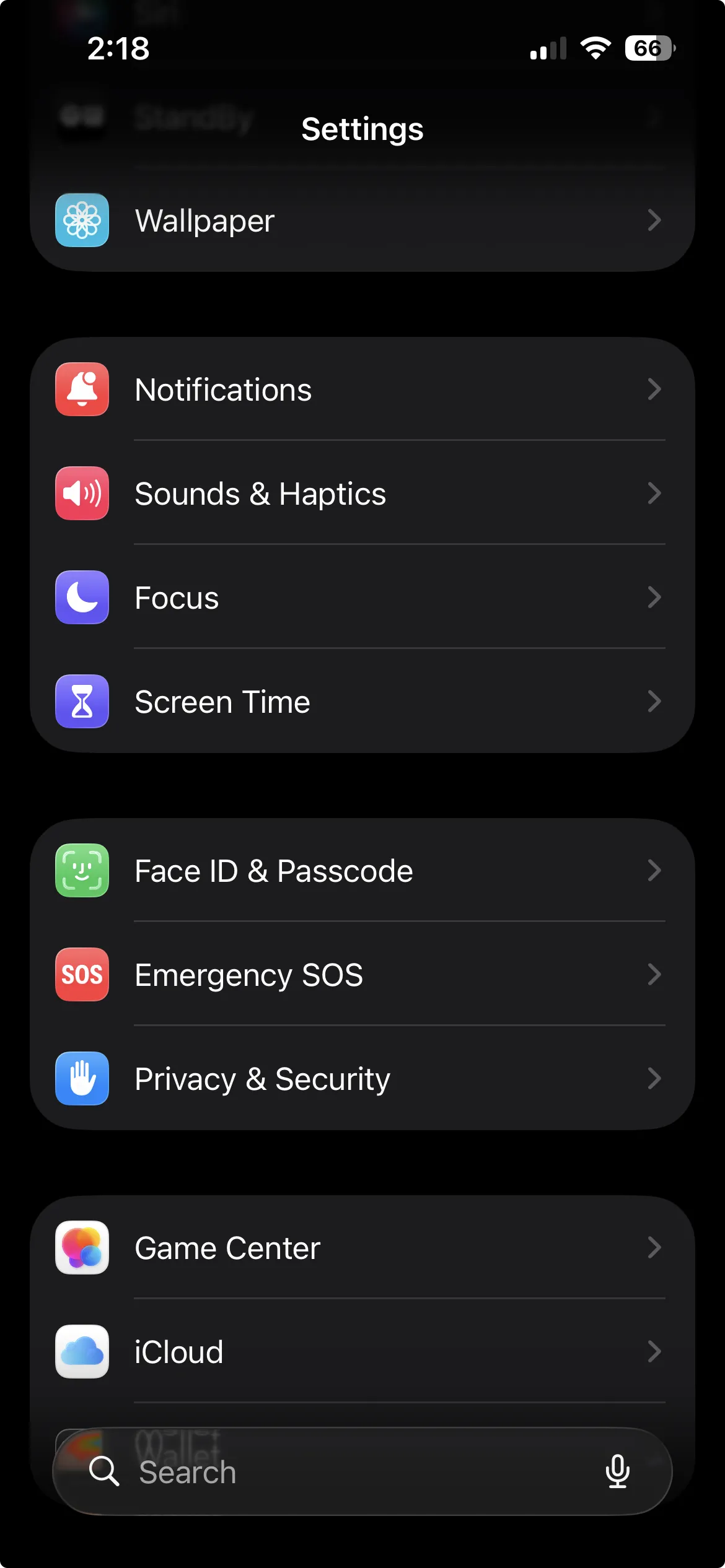
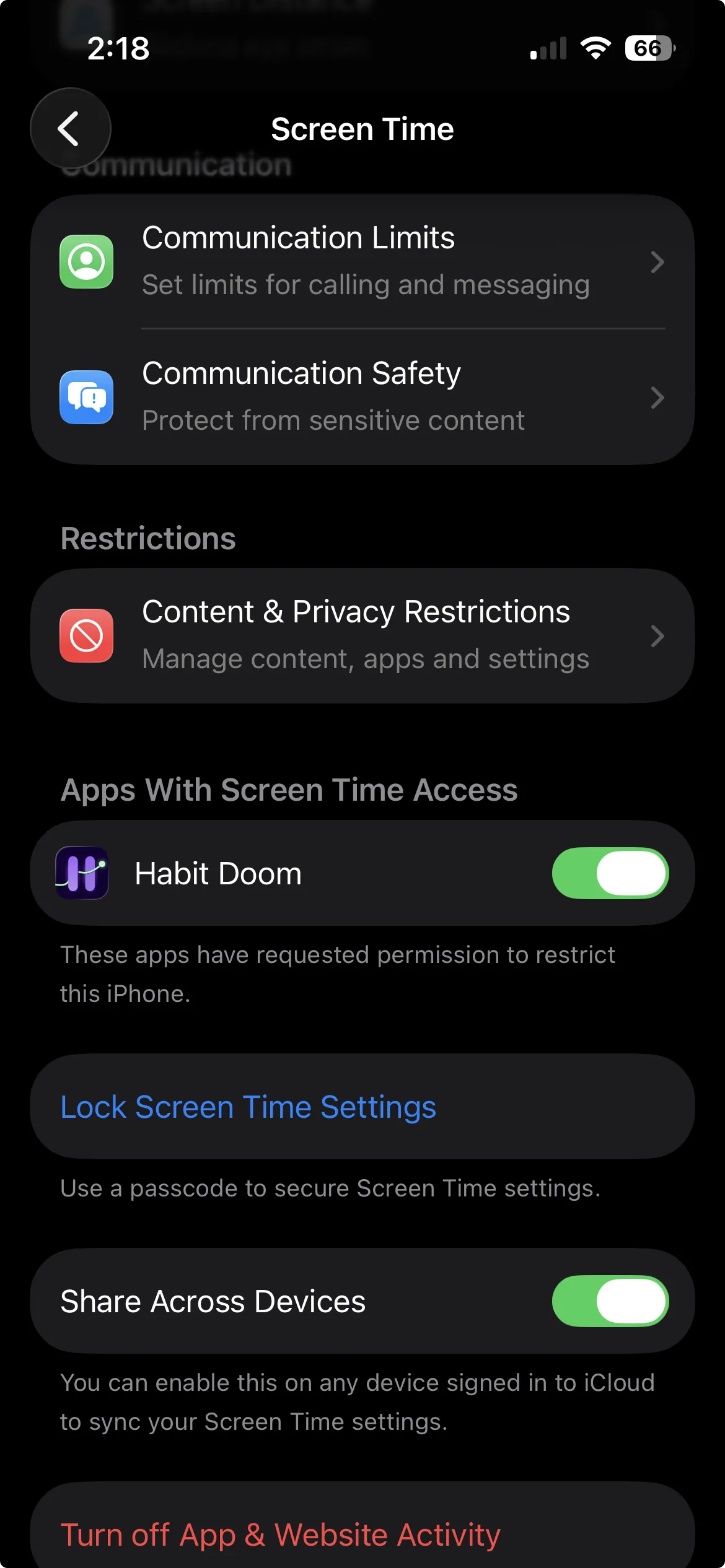
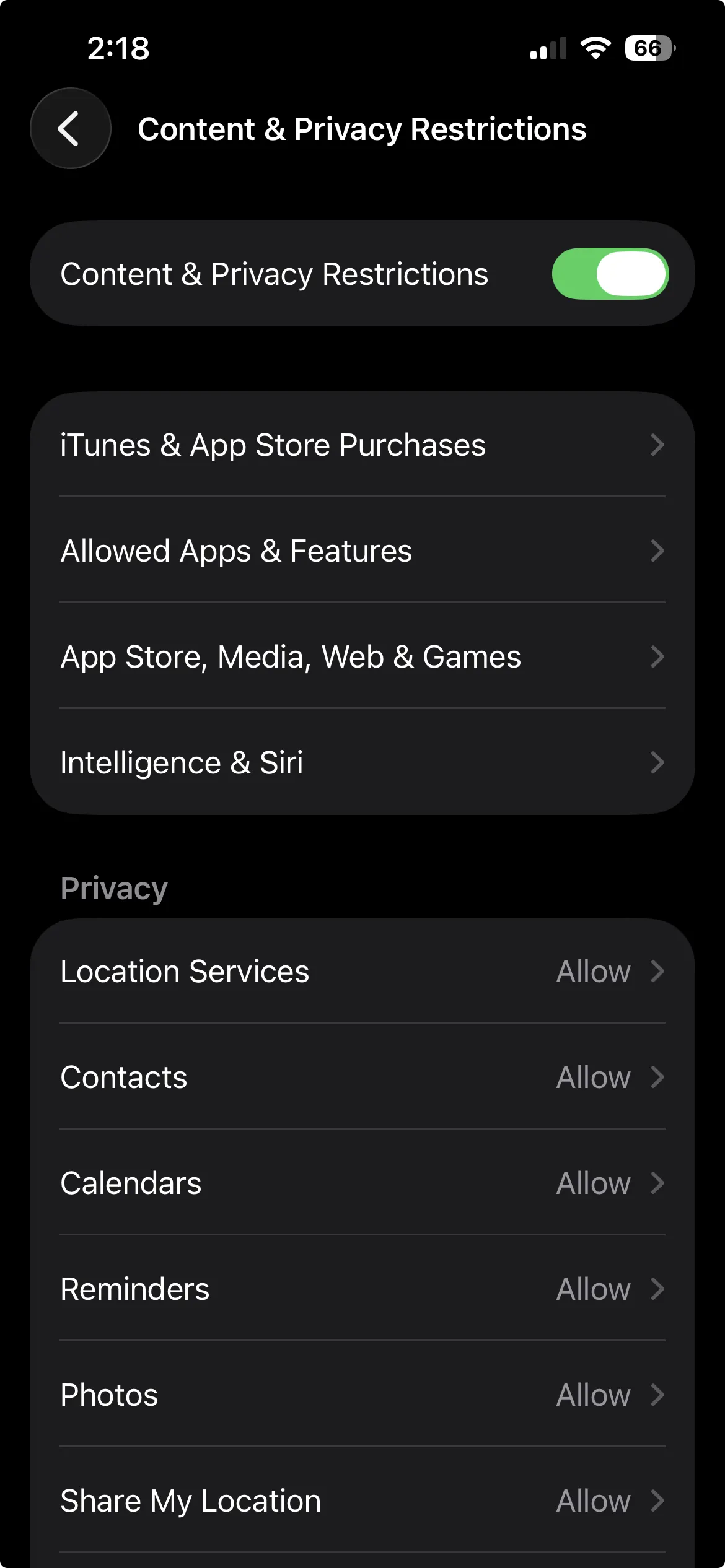
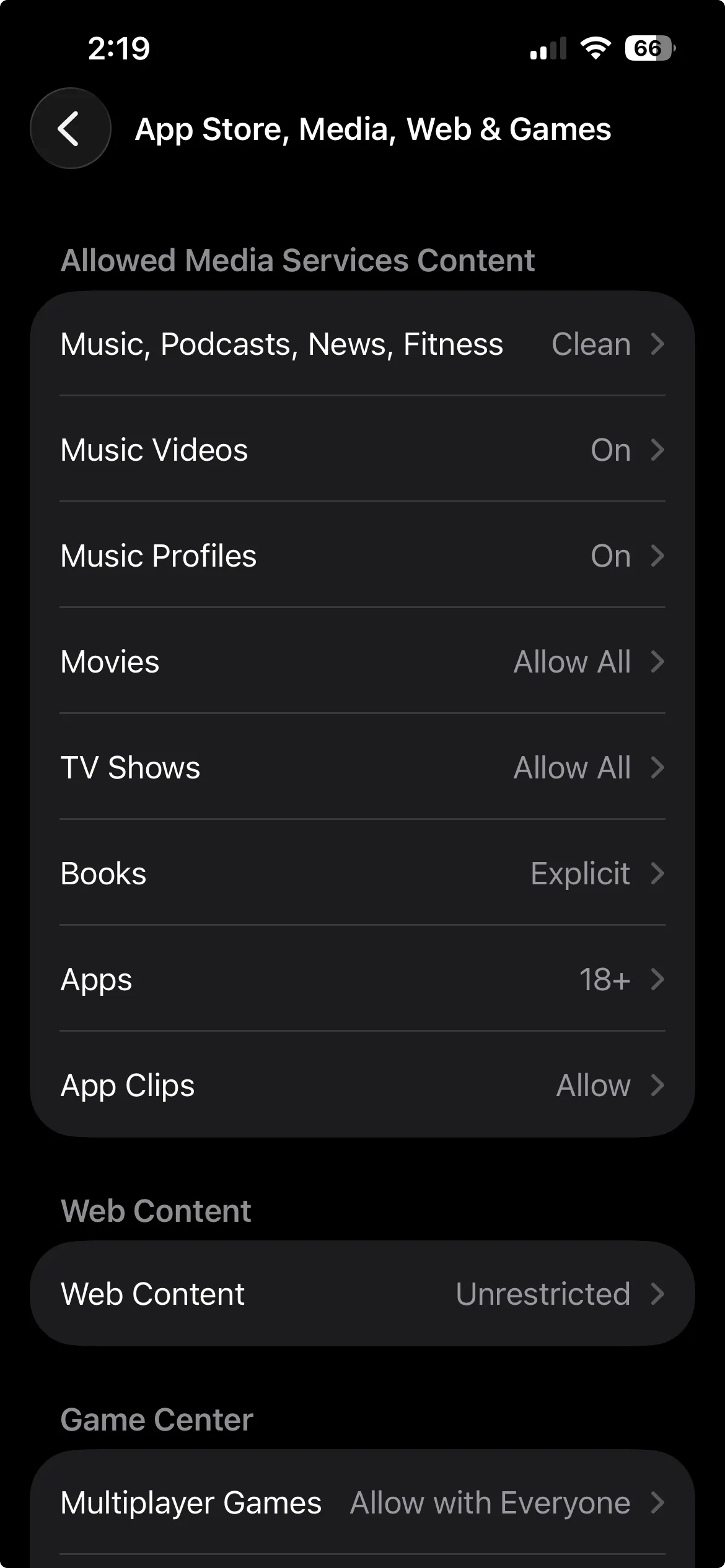
- Open Settings.
- Tap Screen Time.
- Tap Content & Privacy Restrictions (under Restrictions, a short scroll down). Toggle Content & Privacy Restrictions on at the top if it is not already.
- Tap App Store, Media, Web & Games. (On older iOS this item reads Content Restrictions.)
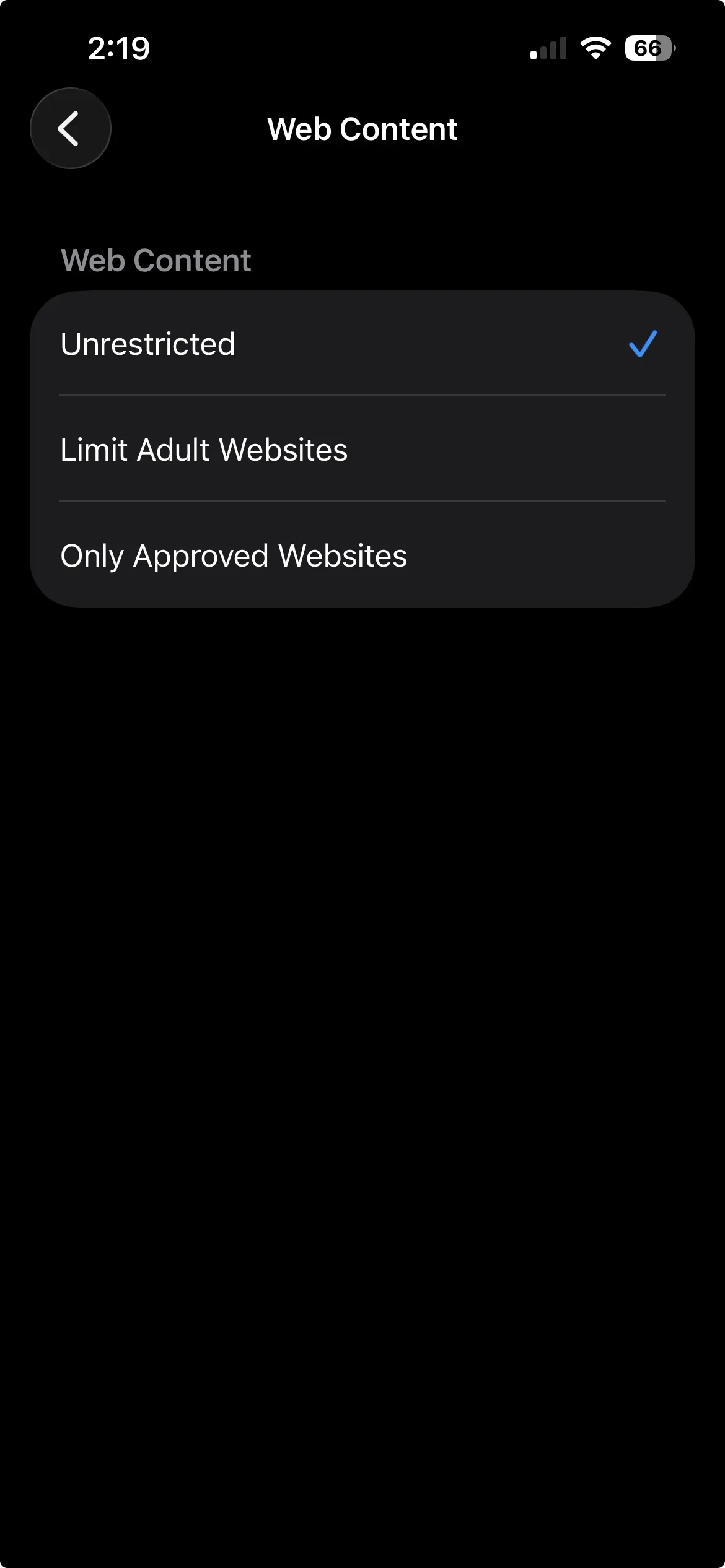
- Tap Web Content, near the bottom of that screen.
- Choose Limit Adult Websites.
That is it. You will see three options under Web Content:
- Unrestricted Access: no filtering.
- Limit Adult Websites: the automatic filter that blocks known adult sites. This is the one you want.
- Only Approved Websites: a stricter allowlist that blocks everything except sites you specifically add. More on this below.
Once Limit Adult Websites is selected, iOS starts checking pages against Apple's automatic list as they load and blocks the ones it recognizes as adult. A blocked page shows Apple's own restriction message rather than the site.
Fine-tune with the Always Allow and Never Allow lists
The automatic filter is a good default, but it is not the whole story. Under Limit Adult Websites you get two lists you control by hand:
- Always Allow: a whitelist. Add a site here and it is never blocked, even if the filter would otherwise flag it. Use this if a site you trust keeps getting caught by mistake.
- Never Allow: a blacklist. Add a site here and it is always blocked, even if the automatic filter misses it. Use this for specific sites you know you want gone.
To add to either list, tap Add Website and type the address. This is how you close the two normal gaps in any automatic filter: the safe site it flags by accident, and the site it does not recognize yet. If you find something slipping through, thirty seconds on the Never Allow list handles it.
One thing that surprises people: Private Browsing turns off
The moment you switch on Limit Adult Websites, Safari Private Browsing is disabled. The private tab option disappears. That is intentional. A private tab would otherwise be an easy way around the filter, so Apple removes it while the filter is active. It is a small detail that closes a big loophole.
The stricter option: Only Approved Websites
If Limit Adult Websites is still more open than you want, the third Web Content option, Only Approved Websites, flips the model. Instead of blocking a list of bad sites, it blocks everything and allows only the sites you approve. You build the allowlist yourself.
This is heavy-handed for a general phone, and it makes normal browsing painful. But for a child's device, or a phone used only for a few specific tasks, it is the strictest setting Apple offers without any third-party tool. Worth knowing it exists before you reach for anything paid.
The setting that decides everything: the Screen Time passcode
Here is the part that matters more than any of the steps above. The filter is only as strong as the passcode protecting it.
By default, anyone who can get into Settings can walk the same path you just did and switch the filter back to Unrestricted in seconds. To stop that, you set a Screen Time passcode. Apple specifically recommends making it different from your device unlock code. To set one: Settings, Screen Time, Lock Screen Time Settings, then choose a passcode.
Now the honest catch. If you are setting this up for yourself and you hold the passcode, you can always turn the filter off. The passcode stops other people, and it stops the idle impulse, but it does not stop the determined version of you at midnight who knows the four digits.
For real accountability, the intended design is that someone else holds the Screen Time passcode: a partner, a friend, an accountability contact. You get the block, they hold the key. Apple itself is clear that no web filter is completely foolproof, and this is why. The technology is solid. The weak point is human.
Where the free filter falls short
I want to be fair to a tool that costs nothing and works well. But you should know its edges before you decide it is enough.
- Coverage is Apple's list. The automatic filter is strong, not exhaustive. Some sites slip past until you add them to Never Allow, and occasionally a safe site gets flagged.
- Browser gaps. It works best in Safari and Chrome. Coverage can be weaker or inconsistent in some third-party or privacy-focused browsers and certain in-app views. A determined user can also bypass any system filter with a VPN, custom DNS, or a non-standard in-app browser.
- You can toggle it off. If you hold the Screen Time passcode, the filter is one visit to Settings away from gone. Choosing Clear All Data in some flows can also reset it.
- It is a filter, not tamper-proof armor. It does not survive things it was never meant to survive, and it is not designed to fight the person who controls the phone.
None of this makes the built-in filter bad. For someone who wants adult sites off their phone and is not actively trying to defeat their own setup, it genuinely does the job. The gap opens only when the person you are protecting against is willing to walk into Settings and switch it off.
When to add a harder-to-undo layer
If you tried the free filter and it holds, you are done. Stop here. Add a layer only if you keep switching the filter off yourself, or the browser gaps matter for you. Here are the honest options, matched to the gap they fix.
If you keep toggling it off: a lock-out or a friction gate
One Sec has an "Adult Content Detox" feature that works system-wide across web views and adds a real lock-out: you can commit to 10 days, 1 month, or forever, and you cannot simply switch it back mid-commitment. One Sec has a free tier, with paid plans at $19.99/year or $99.99 lifetime. The lock-out is the point: it removes the midnight escape hatch that the Screen Time passcode leaves open when you hold the passcode yourself.
Habit Doom takes a different angle at the same problem. It switches on that same Apple Limit Adult Websites filter, but keeps it always on and separate from everything else in the app, so completing habits or unlocking apps never lifts it. Turning it on is one tap. Turning it off is gated behind a math challenge, a deliberate friction step that does not require handing a Screen Time passcode to someone else. If the reason the built-in filter fails for you is that flipping it off is too easy in a weak moment, that gate is the fix. It is a Pro feature. To be clear, Habit Doom is not a dedicated porn blocker. Its fit here is impulse friction: it drives the same free Apple filter and just makes switching it off harder than reaching for Settings.
If the browser gaps matter: DNS or a supervised profile
For coverage that does not depend on which browser is open, a DNS-based blocker filters at the network layer and catches more browsers and apps than a per-browser filter does.
For the hardest-to-remove case, an MDM or configuration profile on a supervised device is the ceiling. On a properly supervised device, the profile cannot be removed on-device at all, so the block is not something the user can quietly undo. This is more setup than most people need, but it is the honest answer for a device you must lock down for good.
One note on tools that get recommended in this space: Bark and similar monitoring services watch activity and alert a parent, but they monitor rather than hard-block. If your goal is a wall, not a report, that is a different job.
The honest takeaway
Start with the free filter. Settings, Screen Time, Content and Privacy Restrictions, App Store, Media, Web and Games, Web Content, Limit Adult Websites. Add your misses to Never Allow, and if you want it to actually hold, set a separate Screen Time passcode and, ideally, let someone else keep it. For a lot of people, that is the whole solution and it did not cost a cent.
Add a layer only where the free filter leaves a real gap: a timed lock-out or a friction gate if you keep switching it off, DNS or a supervised profile if the browser coverage is not enough. The tool matters less than the principle. A block only works if it is harder to undo than the urge to undo it. Pick the level of friction that matches how badly you need it to stay on, and no more.
Frequently Asked Questions
Keep Reading
Try Habit Doom
Lock your distracting apps. Complete your habits. Earn your screen time. It takes 30 seconds to set up.
Download Free