


How to Stop Doomscrolling the News on iPhone

 X
X LinkedIn
Quick answer: how to stop doomscrolling the news
There are three methods worth trying on iPhone, and they stack. Use iOS Screen Time first (it is free, built in, and it covers both news apps and news sites in Safari), add One Sec if you want a pause that makes you reconsider before you open a news app, and use Habit Doom if you want the news apps you pick locked until your habits are done. Pick by how you actually fail.
The short version:
- iOS Screen Time: free, built in. App Limits plus Downtime for news apps, and Safari website restrictions for news on the web. The weak spot is the Ignore Limit button, which bypasses app limits in one tap.
- One Sec: a breathing pause before a news app opens, then it asks if you still want to continue. Best for awareness, not a hard block.
- Habit Doom: locks the news apps you choose until you finish your habits, and the lock resists tampering. Best if the one-tap bypass keeps winning.
The rest of this guide covers why news is uniquely hard to put down, then each method in detail with pricing and what it is best at.
Why news doomscrolling is uniquely sticky
Most app blockers assume you have one problem app. Instagram, say, or TikTok. You block that one thing and you are done. News does not work like that, and that is what makes it hard.
News is not a single app. It lives in Apple News, in whatever dedicated news app you installed, in your X and Reddit feeds where headlines and hot takes show up between everything else, and on news sites you open in Safari. Block the Apple News app and you still have X. Block X and you still have a browser tab. The moment one door closes, there is another one open, so you drift to the next without really deciding to.
There is also the nature of a feed. It refreshes forever, so there is no bottom to hit and no natural place to stop. And news skews toward the alarming, which makes the next headline feel urgent even when nothing on the screen needs a response from you right now. That combination, spread across many entry points and no end state, is why "just close the app" rarely works. You have to close several doors at once, and ideally tie the closing to something you would rather be doing.
That is the frame for the three methods below. Screen Time closes the most doors, One Sec slows you down at each one, and Habit Doom turns the lock into a reward for finishing your habits.
Method 1: iOS Screen Time (free, covers apps and Safari)
Screen Time is Apple's built-in tool, it is free, and it is the only method here that natively covers both news apps and news you read in a browser. That breadth is its main strength for news specifically.
Three settings do the work:
- App Limits: set a daily time cap on your news apps (Apple News, any dedicated news app, and X and Reddit if that is where you scroll headlines). When the cap runs out, the app greys out.
- Downtime: schedule windows where apps are off entirely, for example mornings before work or the last hour before bed, which are the two times news doomscrolling tends to bite hardest.
- Safari website limits: under content restrictions, you can limit specific websites, which is how you handle news sites you read in the browser rather than in an app. This is the piece the other two methods do not cover, so keep it even if you add a blocker later.
The catch is real and worth knowing before you rely on it. When an App Limit runs out, iOS shows an Ignore Limit button, and one tap gets you back in. If you are the person who set the limit, you can undo it whenever the urge hits, which is most of the time. For a lot of people that makes Screen Time a good foundation but not a hard stop.
Best for: the widest coverage at zero cost, especially the Safari website side that app blockers cannot touch. Start here regardless of what else you add.
Method 2: One Sec (a pause before you open the news)
One Sec does not block anything. Instead, when you try to open a news app, it interrupts with a short breathing pause and then asks whether you still want to continue. The idea is to put a beat of awareness between the impulse and the feed, so the open becomes a choice instead of a reflex.
What it gives you that a hard block does not is data and gentleness. It tracks how often you chose not to open the app after the pause, which is a concrete measure of your impulse control over time, and it never fully locks you out, so it does not get in the way when you genuinely need to check something. It runs on iOS and Android, so it is also the pick if you split time across both.
The tradeoff is the flip side of that design: after the pause, you can proceed. There is no wall. For someone who will tap through every time, One Sec is gentler than they need. For someone who mostly just needs a reminder that they are about to fall in, the pause is often enough.
One Sec is free with limits, then $19.99/year for the full version.
Best for: awareness and a moment to reconsider, rather than a boundary you cannot cross.
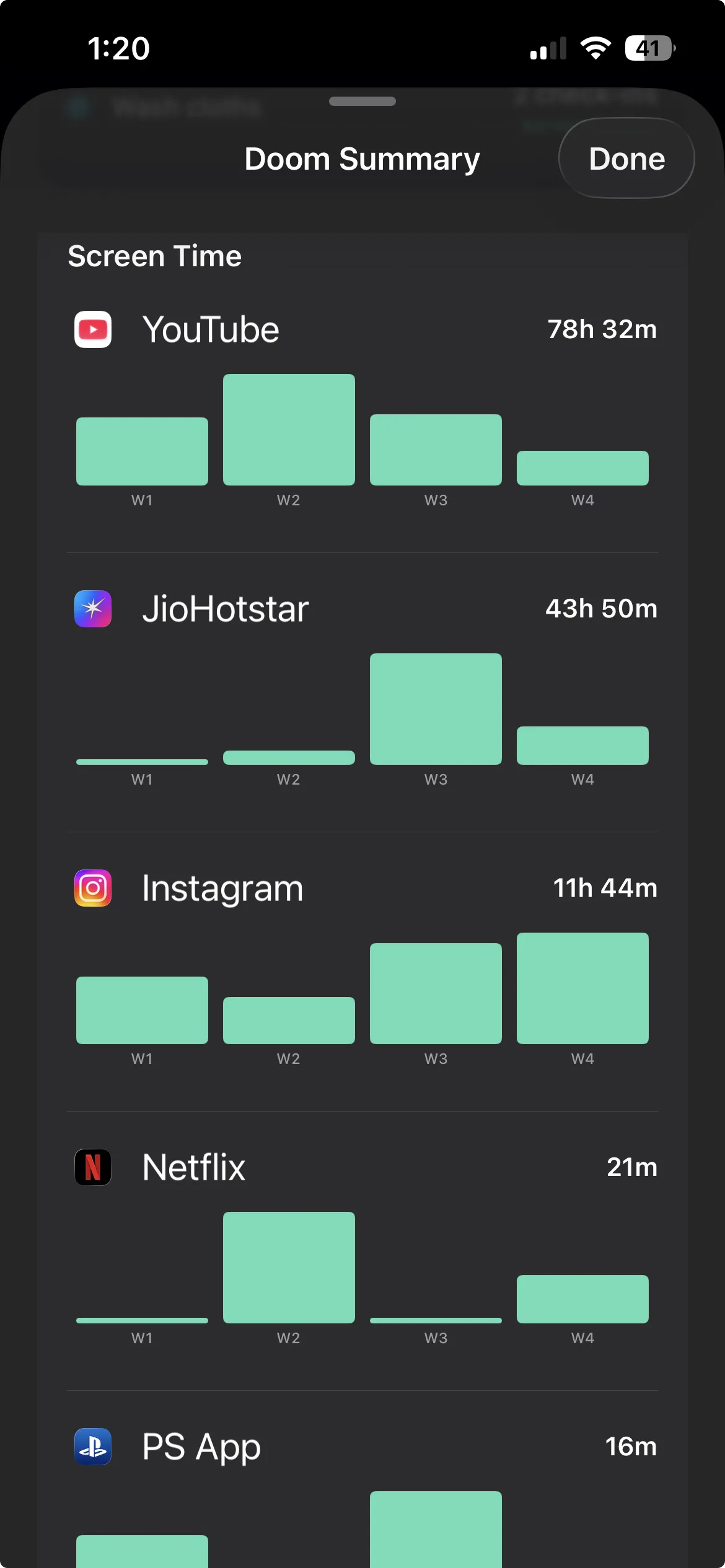
Method 3: Habit Doom (news apps stay locked until your habits are done)
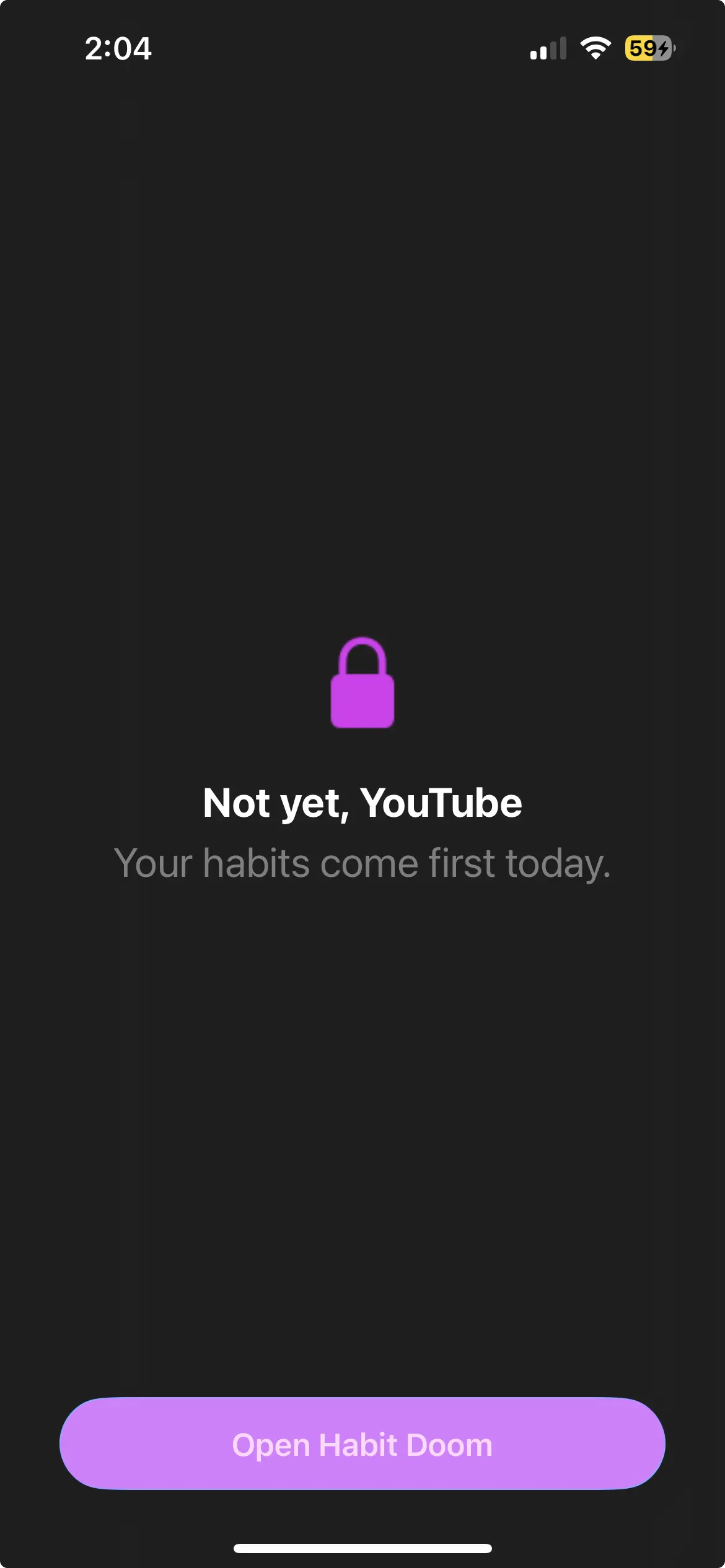
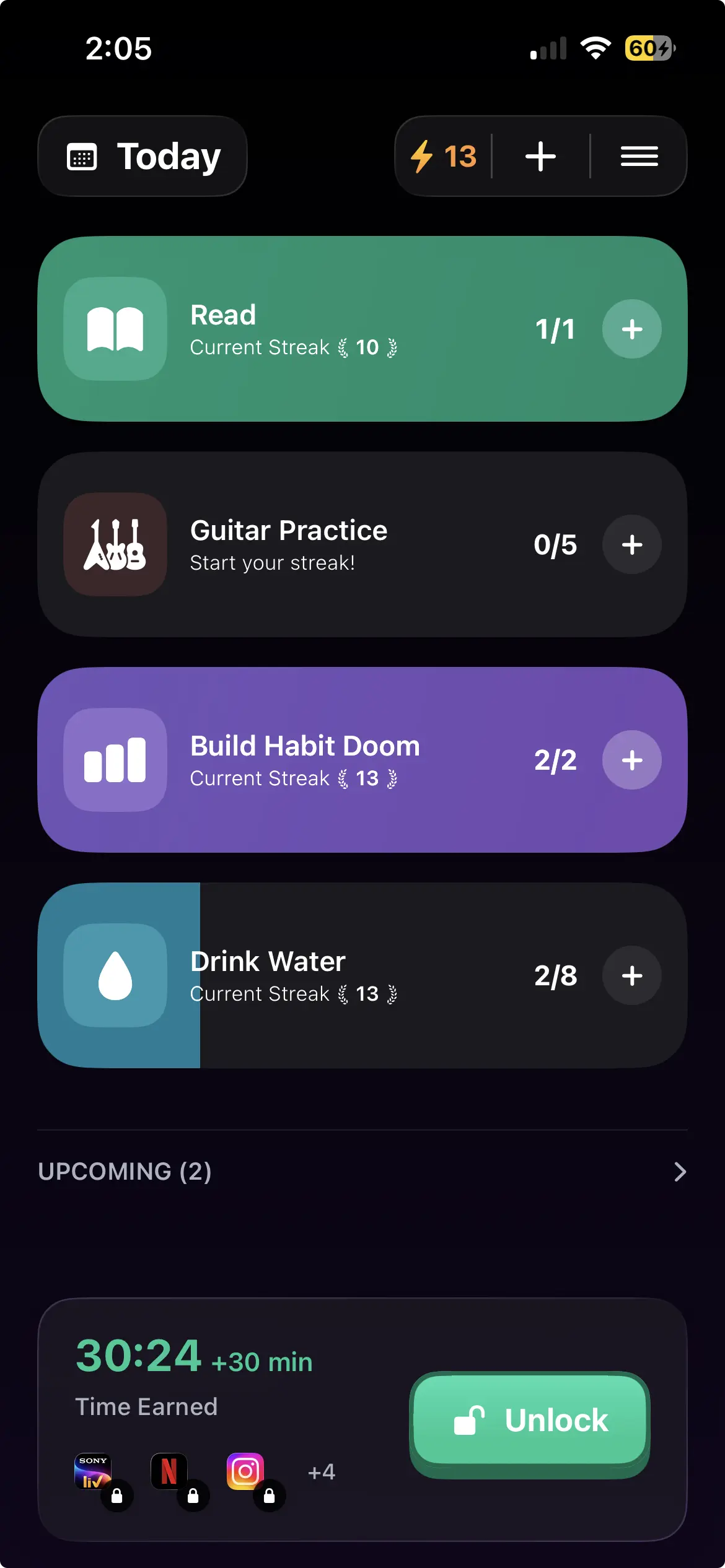
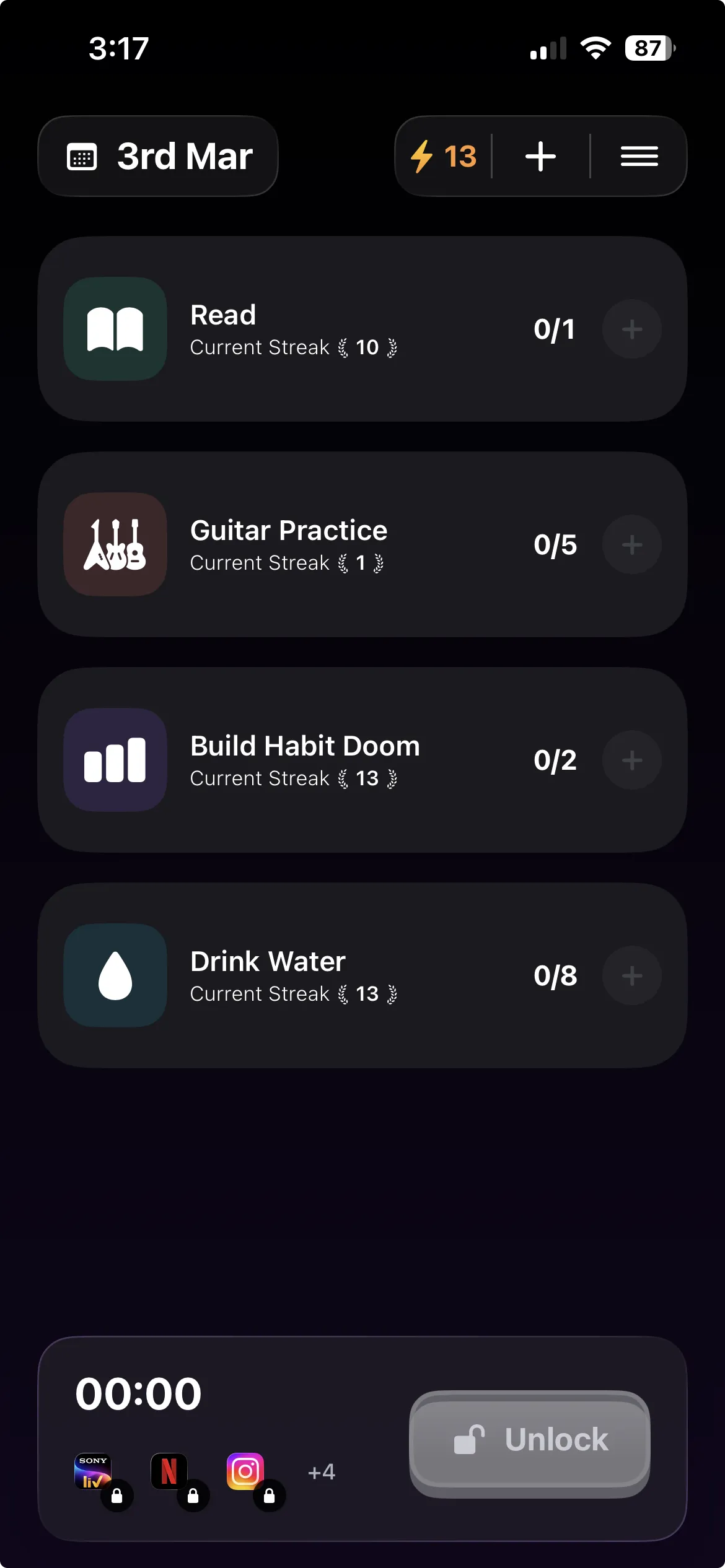
The other two methods either let you tap past the block or ask you nicely to reconsider. Habit Doom takes a different angle: it locks the news apps you pick by default and unlocks them only when you finish your habits. The block is not a time cap or a pause, it is a gate, and the key is doing the thing you actually meant to do this morning, so you swap the scroll for a better habit instead.
you pick the news apps that pull you in (Apple News, a dedicated news app, X, Reddit), and they stay locked. Read, exercise, study, whatever your habits are, and once they are checked off, the apps open. So instead of blocking news for its own sake, you are trading it for finished work, which is a cleaner deal than a limit you can ignore.
Built on the Apple Screen Time API, the same enforcement layer serious blockers use. The difference is what happens when you try to weasel out of it: the lock is tamper-resistant and holds through uninstall, force-quit, and system clock changes. That directly answers the weak spot in Method 1, where the Ignore Limit button ends the block in a single tap. There is no equivalent tap here.
One thing it does not do: Habit Doom targets apps, not individual websites. So news you read in Safari is not its job. Handle that with Screen Time website restrictions from Method 1, and let Habit Doom hold the app side. The two together cover both doors.
Anti-Cheat (free): when you check a habit off, the camera opens and you snap a real-time photo that an on-device AI model verifies against the habit. It keeps the "I finished my habits" unlock honest, so you are not just tapping a box to get to your feed.
Price: free to download and use, with up to 3 habits, app blocking, custom alarms, streaks, and Anti-Cheat photo verification in the free tier. Premium is $4.99/month, $19.99/year (with a 7-day free trial), or $29.99 lifetime for unlimited habits. No ads.
Best for: people for whom the one-tap bypass keeps winning, and who would rather earn their news than ration it.
Quick comparison: the three methods
| Method | Price | Covers Safari news | Blocking model | Bypass |
|---|---|---|---|---|
| iOS Screen Time | Free | Yes (website limits) | App limits, Downtime, website limits | Ignore Limit, one tap |
| One Sec | Free / $19.99 yr | No | Breathing pause, then proceed | Continue after the pause |
| Habit Doom | Free / $4.99 mo | No (apps only) | Habit-gated lock | Tamper-resistant, holds through uninstall and force-quit |
Free options for stopping news doomscrolling
You do not have to pay to make real progress here.
iOS Screen Time is fully free and does the most for news out of the box, because it is the only method that covers both news apps and news sites in Safari. Set App Limits and Downtime on your news apps, add Safari website restrictions for the sites you read, and you have closed most of the doors at no cost. The honest caveat is the Ignore Limit button, which lets the person who set the limit tap past an app limit whenever they want.
Habit Doom is free to download and use. The free tier covers up to 3 habits, app blocking through the Apple Screen Time API, custom alarms, streaks, and Anti-Cheat photo verification, with no card required. If the Screen Time bypass is your problem, the free tier alone gives you a lock that does not fold to a single tap.
One Sec is free with limits if you want to start with the breathing pause before committing to the full version.
A good free stack: Screen Time for Safari news and a broad app cap, plus Habit Doom's free tier to hold your worst news apps behind your habits.
Which method fits you
If you read a lot of news in Safari: you need iOS Screen Time. It is the only method that limits websites, so it is non-negotiable for browser news, no matter what else you add.
If you mostly need a nudge, not a wall: One Sec. The breathing pause and the "did you still want to open this" prompt are enough for people who scroll on autopilot but will stop once they notice.
If the Ignore Limit button keeps beating you: Habit Doom. When a one-tap bypass is the whole reason Screen Time fails you, a habit-gated lock that resists tampering is the fix.
If you want to earn your news instead of rationing it: Habit Doom, since it is the only method that ties the unlock to finishing your habits rather than to a timer or a pause.
If you want the strongest setup: stack them. Screen Time handles Safari news and a broad cap, Habit Doom locks your worst news apps behind your habits, and One Sec adds a pause on anything you leave unblocked.
Disclosure: Habit Doom is our app. I have tried to give Screen Time and One Sec a fair read, but factor that in. Screen Time is genuinely the best starting point for news because of the Safari coverage, and One Sec is a real fit if a gentle pause is all you need. The best method is the one that matches how you actually fail, not the one with the most features.
The honest take
News is hard to quit because it is not one app and it never ends. That is the thing to plan around. No single tool closes every door, so the move is to match the tool to the door. Screen Time is the only one that reaches news in Safari, so it stays in the mix regardless. One Sec is a pause for people who just need to catch themselves. Habit Doom is a gate for people who tap past everything else, and it holds the app side through the tricks that defeat a plain Screen Time limit. Pick one, or stack them, and run it for two weeks. If it does not stick, adjust. The slowest path to reading less news is bouncing between tools without committing to any of them.
Frequently Asked Questions
Keep Reading
Try Habit Doom
Lock your distracting apps. Complete your habits. Earn your screen time. It takes 30 seconds to set up.
Download Free