

How to Stop Watching YouTube Shorts

 X
X LinkedIn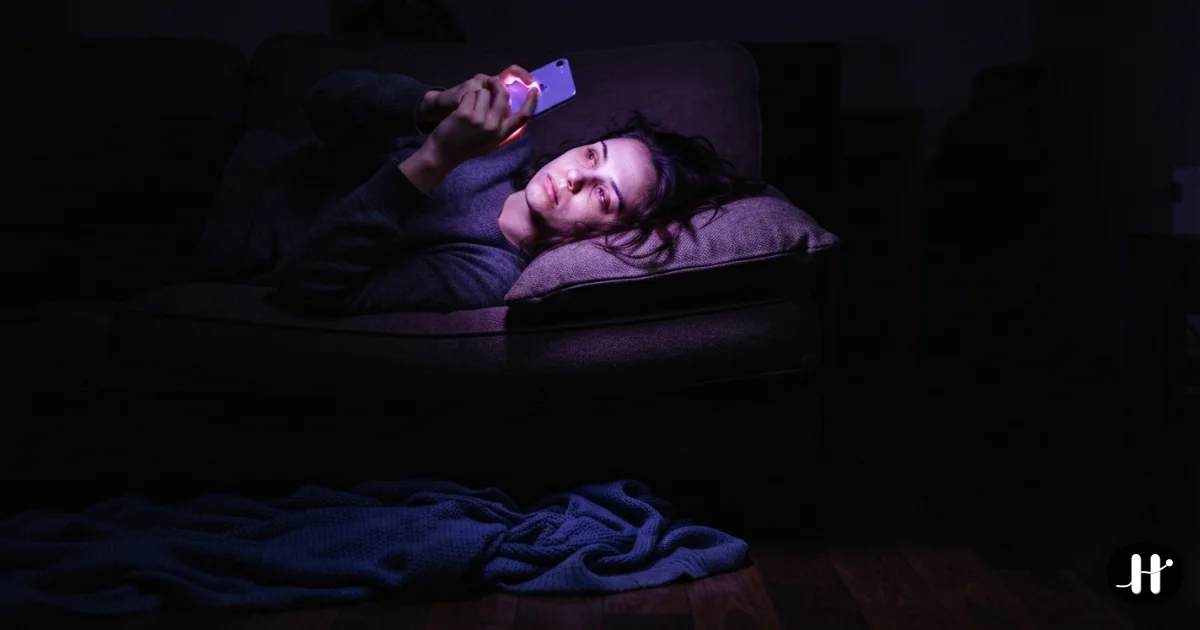
You open YouTube for one video. An hour of Shorts later, you have nothing to show for it.
You meant to watch one tutorial. You tapped the Shorts shelf by accident, or YouTube slid one into your feed, and then your thumb took over. Forty minutes later you surface, slightly dazed, with no memory of a single clip you just watched. And the thing you actually opened YouTube to do? Never happened.
If that loop feels impossible to break, that is by design. Shorts is YouTube's answer to TikTok, and it borrows the same engine: an endless vertical feed tuned to keep your thumb moving. The good news is that you have more control than the feed wants you to think. The honest news is that most of the obvious fixes are weaker than they look, so this guide goes in order, from the in-app toggles to the controls that actually hold.
How to stop watching YouTube Shorts (2026), in short:
- Set your Shorts feed limit to zero (Settings, then Time management, then Shorts feed limit) to remove the Shorts tab and shelf entirely.
- Pause your YouTube watch history so the feed loses its signal and turns generic.
- When the built-in controls are not enough, use an app blocker to lock YouTube or block Shorts on a schedule.
Each step, and where it falls short, is covered below.
First, use YouTube's own Shorts controls
YouTube has quietly shipped real Shorts controls over the last year. Start here, because they cost nothing and take two minutes.
Set a Shorts feed limit (and set it to zero)
Open the YouTube app, tap your profile photo, then Settings, then Time management, then Shorts feed limit. Pick a daily cap. When you hit it, YouTube shows a message that the Shorts feed is paused for the day, per YouTube's own help page and TechCrunch's coverage of the launch.
The more interesting move arrived in 2026: you can set the limit all the way to zero. At zero, YouTube removes the Shorts tab from the bottom navigation, drops the Shorts shelf from your home feed, and pulls most Shorts out of search and suggested results, as Tom's Guide and MediaPost both reported. This is the closest thing YouTube offers to a real off switch for Shorts, and for a lot of people it is enough on its own. Try it first.
Pause your watch history
Your home feed and Shorts shelf are both built from what you have watched. Turn off the fuel and they go generic. Tap your profile photo, then Your data in YouTube, then YouTube Watch History, then turn it off. With history paused, the algorithm loses its fresh signal and recommendations across the app get noticeably blander, which makes the feed easier to close.
The trade-off is honest: pausing watch history weakens all your recommendations, not just Shorts. If you rely on YouTube to surface good long-form videos, you will feel that loss too. Worth knowing before you flip it.
Use "Show fewer Shorts" as a stopgap
On the home feed, tap the menu on a Shorts grid and choose Show fewer Shorts. It nudges the algorithm but does not lock anything, and YouTube keeps reintroducing them over time. Treat it as a tweak, not a fix.
Why the in-app controls leak
Here is the part most "how to turn off YouTube Shorts" articles skip. Every one of these controls lives inside YouTube, and the loop is engineered to outlast them.
The Shorts feed limit shows a reminder you can dismiss. There is no real wall. When you are tired or bored, dismissing a soft prompt costs nothing, so you dismiss it and keep going. The zero-minute setting is stronger, but it is still a toggle three taps deep in the same app you are trying to resist, and the occasional Short still slips through search and recommendations. The feed, in other words, regrows.
This is not a discipline problem. Short-form video runs on variable rewards: each swipe might be a great clip or a dud, and that unpredictability is exactly what keeps your thumb moving. TikTok's internal research, exposed when a 2024 state lawsuit was filed with faulty redactions, estimated it takes roughly 260 videos, under 35 minutes, for an average user to form a habit on the platform. Shorts is built on the same mechanics. (For the full neuroscience, see why you can't stop scrolling.)
So a reminder you can swipe away is bringing a sticky note to a tug-of-war. To actually win, you need controls that do not depend on willpower in the exact moment willpower is gone.
The honest limitation: you can't block only Shorts at the system level
This is the trade-off worth being upfront about. On iPhone, Screen Time and every third-party app blocker see YouTube as a single app. They cannot reach inside it and block only the Shorts feed while leaving regular videos open. The feed and the full app are one target.
That leaves two real options. Use YouTube's built-in Shorts feed limit (set to zero) to suppress Shorts while keeping the app, accepting that it is reversible and a little leaky. Or block the entire YouTube app for the windows that matter most, accepting that long-form goes dark too during those windows. Most people end up doing both: zero out Shorts for everyday use, and hard-block the whole app during the hours they need to protect.
That second piece, the hard block, is where the friction ladder comes in.
The friction ladder that actually holds
The principle behind every durable fix is the same: add enough friction that opening Shorts stops being the path of least resistance. Each rung is stronger than the last.
Rung 1: delay, don't decide. Move the YouTube app off your home screen and into a folder on the last page, or hide it from the Home Screen entirely so you have to search for it. You are not banning anything. You are adding three seconds of effort, which is often enough to break the autopilot tap.
Rung 2: block the app during focus windows. Pick the hours you keep losing, the first hour after waking, the workday, the hour before bed, and block the YouTube app outright during them. iOS Screen Time can do a basic version of this with app limits and Downtime, though the limits are dismissable in a tap. For enforcement that actually holds, you want a blocker that does not fold the moment you push back.
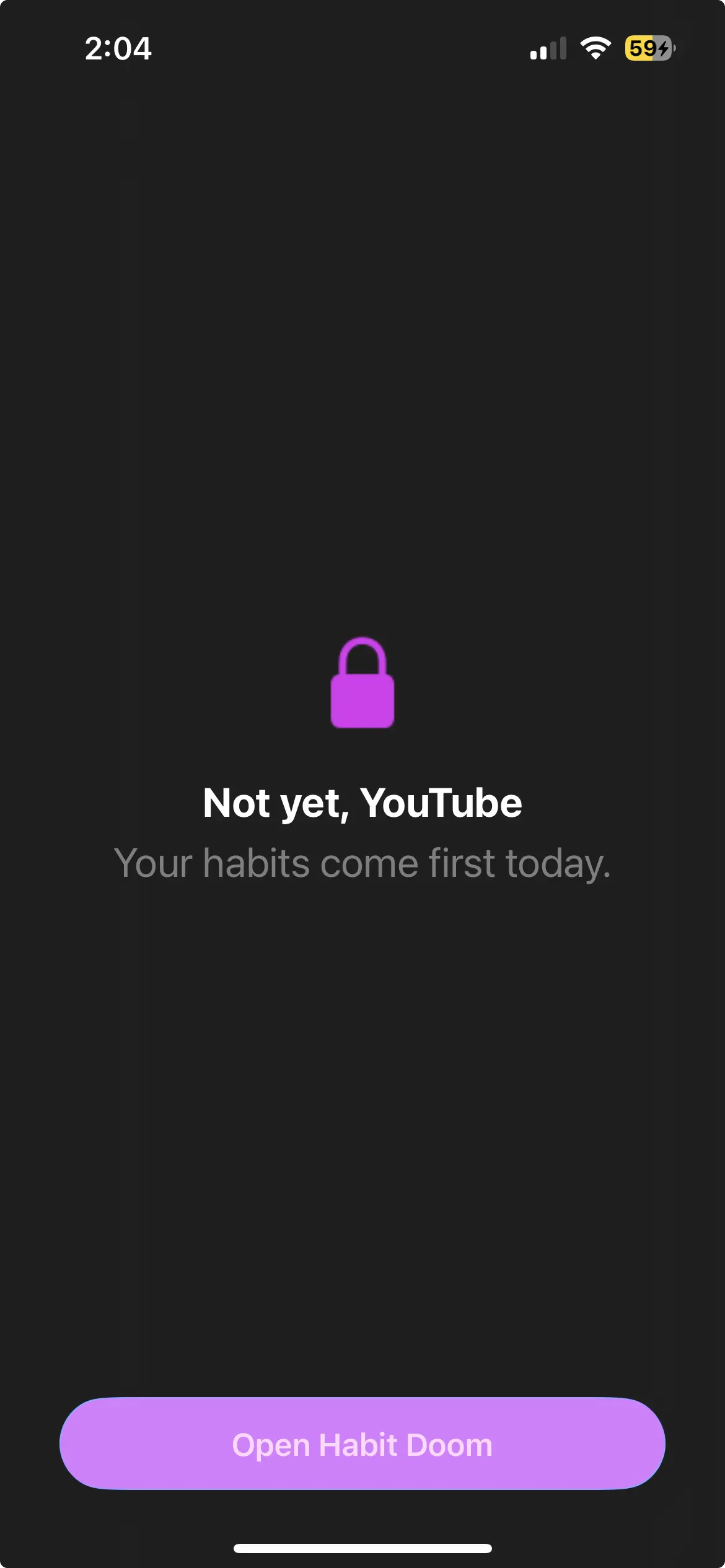
Rung 3: gate Shorts behind the thing you meant to do. This is the rung that changes the dynamic. Instead of blocking YouTube on a fixed schedule, you block it until you have done your actual priorities for the day. Now the feed is not forbidden, it is earned. You reach for Shorts, find YouTube locked, and the fastest way to unlock it is to go do the thing you opened your phone to avoid.
How conditional locking works
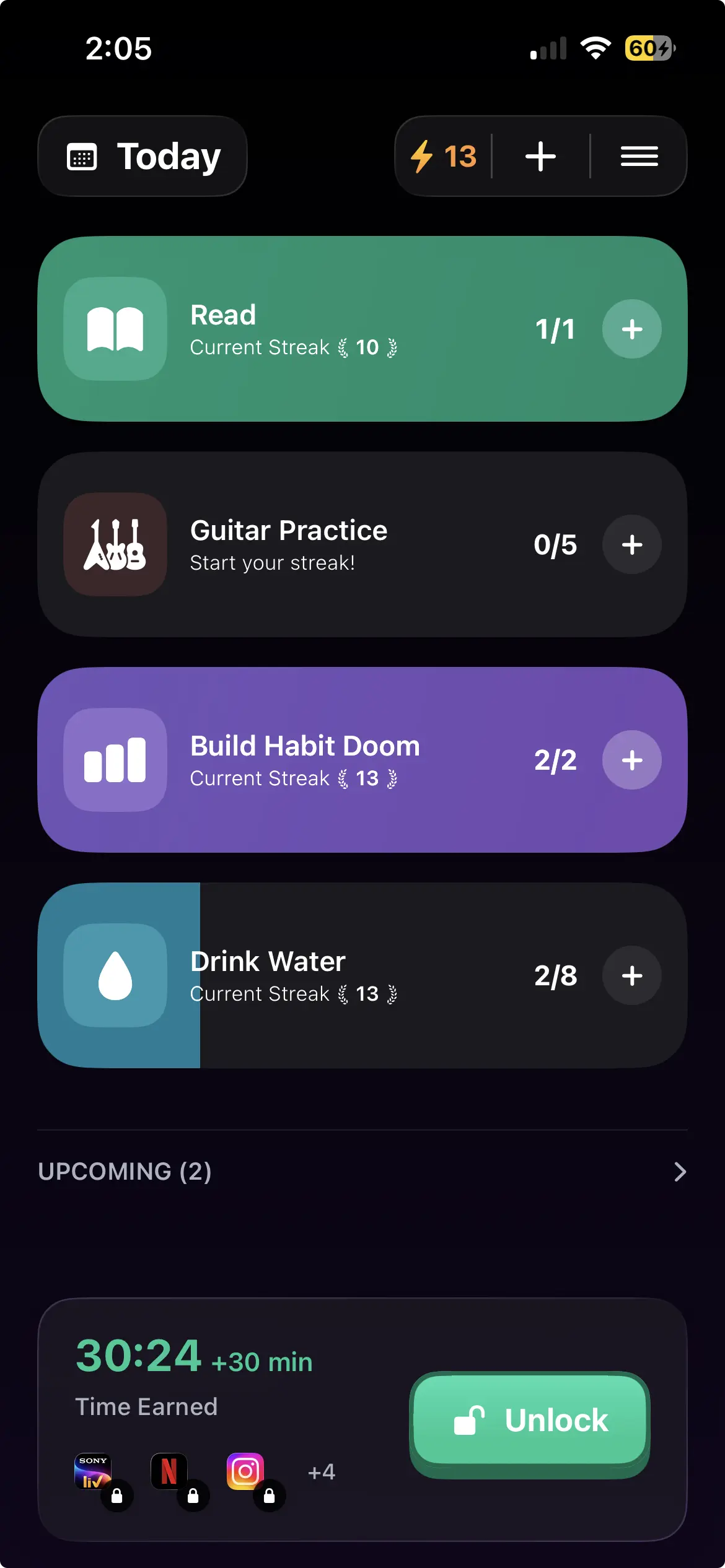
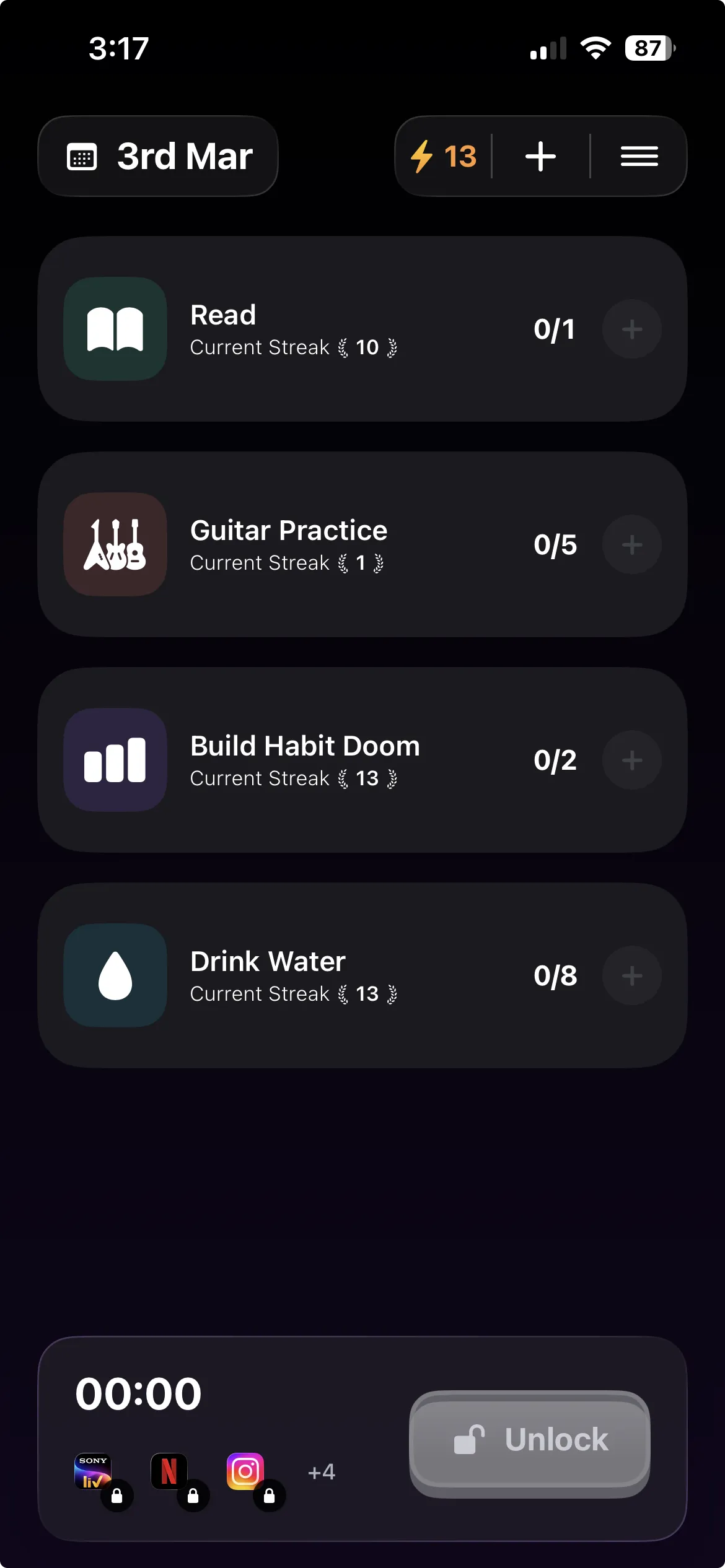
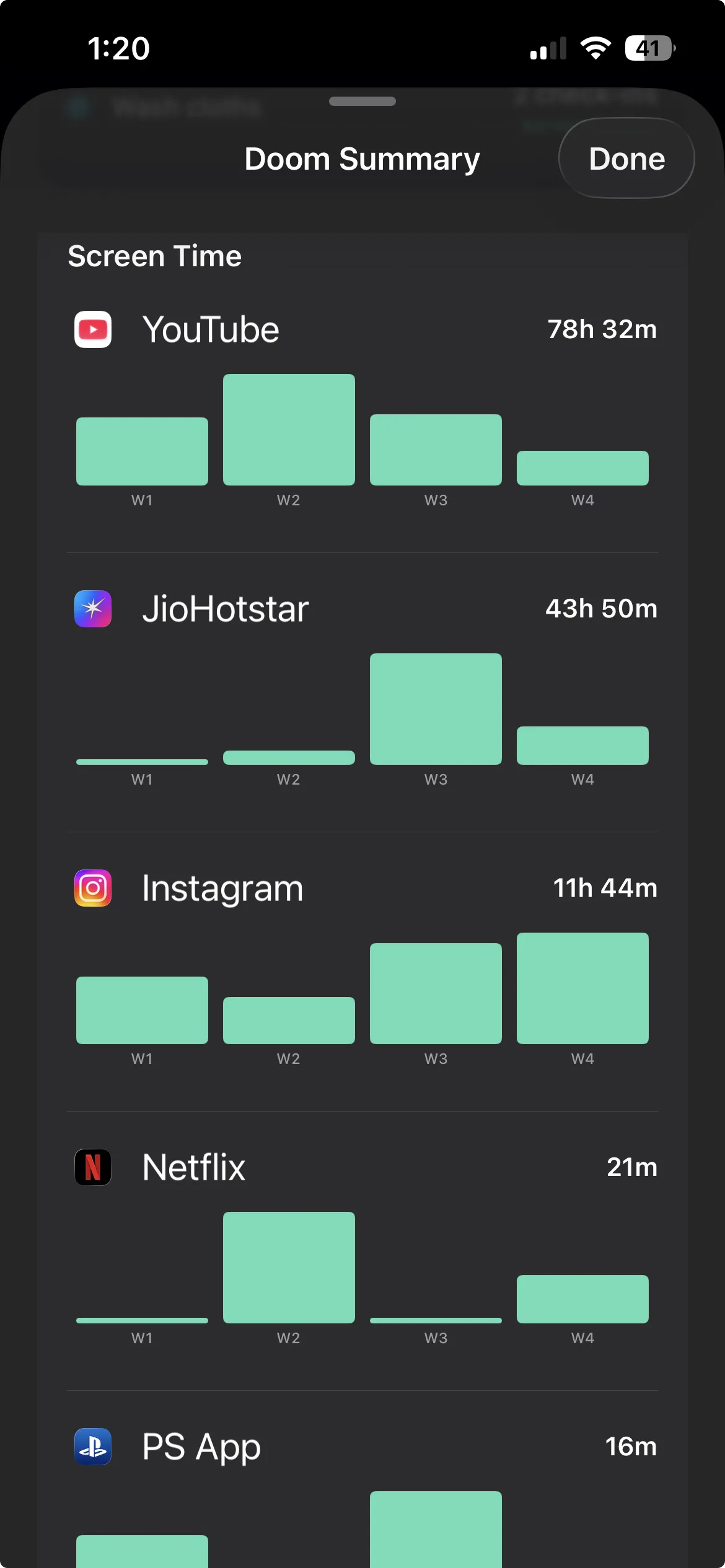
Habit Doom is built around that third rung. It locks distracting apps at the iOS ManagedSettings layer until your daily habits are done. You add YouTube to the block list, define a few small daily habits, and YouTube (and its Shorts feed along with it) stays locked until you check those habits off.
The setup is short:
- Download Habit Doom from the App Store. Free to download and use.
- Add YouTube to your block list. Add Instagram, TikTok, or Reddit too if those are also escape hatches. The fewer side doors, the better the system works.
- Create one or two small daily habits. Keep them tiny: "Read 10 pages," "Make the bed," "20 minutes of focused work." Achievable beats ambitious. If a habit is too big, you will skip it and resent the app.
- Reach for YouTube, find it locked, do the habit first. Once your habits are checked off, YouTube unlocks for the rest of the day. Shorts and all.
Because the lock sits at the system layer, it survives a force-quit, and the tamper-resistant enforcement survives an uninstall too. That part is free for everyone, as is Anti-Cheat photo verification, which asks for a quick photo to confirm a habit really happened. So "I did it" cannot quietly become "I'll do it later." The free tier covers up to three habits, app blocking, custom alarms, and streaks, with no ads, which is enough to gate YouTube and build the habit that unlocks it. Pro ($4.99/month, $19.99/year (with a 7-day free trial), or $29.99 lifetime) adds unlimited habits, Hard Mode, and advanced analytics if you want to go further.
This is not the right tool for everyone. If YouTube's zero-Shorts setting alone fixes your problem, use that and skip the app. Conditional locking is for the case where the feed keeps regrowing no matter how many in-app toggles you flip, and you want the decision taken off your plate entirely.
Stack them, in order
The setup that holds is a stack, not a single switch:
| Layer | What it does | How strong |
|---|---|---|
| Shorts feed limit set to zero | Hides Shorts from nav, home, most search | Medium, reversible in-app |
| Pause watch history | Strips the personalization that feeds the loop | Medium, affects all recs |
| Move YouTube off home screen | Breaks the autopilot tap | Light friction |
| Block YouTube in focus windows | No access during the hours that matter | Strong if enforced |
| Lock YouTube until habits are done | Feed becomes earned, not default | Strongest, removes the decision |
Start at the top, free and instant. Add rungs until Shorts stops winning. Most people do not need all five, but the ones who have tried "just set a time limit" five times already usually need the bottom of the ladder.
The point is not to hate YouTube
YouTube is genuinely useful. Shorts is not the enemy, and the goal is not to swear it off forever. The goal is to stop watching it instead of the things you actually meant to do.
YouTube's own controls are a real first step, so use them today. When the feed keeps growing back, the fix is to make Shorts the reward rather than the default: finish what matters, then the feed unlocks. That is the one job Habit Doom is built for. Read first, or work first, or move first. Watch later. You get both, just in the right order.
Frequently Asked Questions
Keep Reading
Try Habit Doom
Lock your distracting apps. Complete your habits. Earn your screen time. It takes 30 seconds to set up.
Download Free