


Limit Social Media Without Deleting It

 X
X LinkedIn
The advice to "just delete the app" assumes the app is disposable. Most of them are not. The same Instagram that eats two hours of an evening also holds the DMs you run a side project through. Messenger is where half a family coordinates. WhatsApp is the only way some people reach you. Work lives in Slack or Teams. You cannot delete your way out of social media when the deletion also removes a channel you actually need.
And even for the genuinely disposable apps, deletion mostly does not work. It is reinstallable in thirty seconds, the behavior migrates to whatever channel survives, and the relief lasts about a week. The full argument is in why deleting apps never works; the short version is that willpower-by-removal is a bet against your future self at 11pm, and your future self at 11pm usually wins.
So the real question is not how to remove social media. It is how to limit it. Keep the parts you need, put a barrier in front of the parts you do not. What follows is a ladder of methods, weakest to strongest. Climb it until you reach the rung that actually holds for you.
Why limit instead of delete
Deleting is a blunt instrument with three predictable failure modes.
The app is reinstallable. Removal adds about thirty seconds of friction. Thirty seconds is nothing against a craving. You delete on Sunday in a burst of resolve and reinstall on Wednesday in a moment of boredom, and now you have re-onboarded, re-followed, and reset nothing.
The function is load-bearing. Phone-of-record messaging, two-factor codes that arrive in chat apps, marketplace listings, event invites, work threads. Pull the app and you pull the function with it, which is why the deletion never lasts past the first time you actually need it.
The behavior migrates. Block one feed and the same restless reach finds the next one. Delete Instagram and you open TikTok. Delete both and you refresh email like it is a slot machine. The problem was never one specific app. It was the reach.
Limiting addresses the reach directly. You decide in advance, calmly, which apps get a barrier and how strong it is. Then the barrier does the work in the moment you would otherwise be negotiating with yourself. Deletion only makes sense for a truly pure-entertainment app with zero functional value to you. For everything else, limit.
Rung 1: grayscale and notification pruning (free, weak)
The cheapest interventions, and the first to try because they cost nothing.
Grayscale. Drain the color out of your screen and the feeds lose a lot of their pull. Bright reds and the dopamine-coded notification dots stop popping. On iOS this lives under accessibility display settings, and you can bind it to the accessibility shortcut so a triple-click toggles it. It genuinely takes the edge off, because a lot of the feed's grip is visual.
Notification pruning. Turn off every non-human notification from social apps. No "someone you may know," no "you have new memories," no re-engagement bait. Keep direct messages if you need them; kill everything that exists to pull you back in. This removes the interruptions, which is real value.
The honest limit: both are one toggle away from being undone, and neither stops you from opening the app on purpose. They reduce passive pull. They do nothing against an active habit. For someone whose problem is mostly notifications dragging them in, this rung might be enough. For someone who opens Instagram on autopilot the second they unlock the phone, it is a warm-up, not a fix.
Rung 2: Apple Screen Time limits (free, one-tap bypassable)
Apple Screen Time is built in, free, and the natural next step. You set a daily time limit on an app or a category, and when you hit it, a screen appears telling you the limit is reached.
It is better than nothing and worse than it looks. The reached-limit screen has an Ignore Limit option, and tapping it grants more time instantly, with no delay, no friction, and no accountability. The limit is a speed bump you can drive straight over without slowing down. For someone with mostly intact self-control who just wants a reminder to wrap up, that is fine and possibly ideal. For anyone whose actual problem is the autopilot reach, the one-tap override is the weakness, because the moment you are weakest is exactly the moment Ignore Limit is one tap away.
Worth setting up regardless, because it costs nothing. Just do not expect a bypassable limit to hold against the part of you that wants to bypass it. There is a fuller breakdown of where the built-in tools fall short in the Screen Time iOS alternatives guide.
Rung 3: delay blockers (friction before opening)
The next rung adds intentional friction instead of a hard wall. Delay blockers like One Sec and ScreenZen intercept the moment you open a chosen app and make you wait, breathe, or confirm before it lets you through.
The mechanism is psychological, and it is a good one: most app-opening is automatic, not decided. By inserting a few seconds and a "do you actually want to do this" beat, a meaningful share of opens just evaporate. You realize you do not actually want the thing, and you back out. It respects that you are an adult who can override it, while making the override deliberate enough that the autopilot opens die.
The honest limit: it is friction, not enforcement. A determined open still gets through, by design. Delay blockers shine when your problem is mindless reaching and you want to keep agency. They are weaker when you want to genuinely guarantee the app stays shut during specific windows, because nothing here actually locks the door.
Rung 4: hard blockers (scheduled lockouts)
Climb another rung and you get actual lockouts. Opal and Freedom let you schedule sessions or recurring windows where chosen apps are genuinely blocked, enforced at the system level, and meaningfully harder to undo on a whim than a one-tap Ignore.
This is the right tool when your problem is time-bound: you want social apps dead during work hours, or after a certain time at night, or for a focus session you start on purpose. Set the schedule once and the block holds without you having to win a willpower fight each time. Some of these add stricter modes that make ending a session early deliberately annoying, which is the point.
The honest limit: hard blockers are clock-driven, not goal-driven. They ask "what time is it" or "did you start a session," never "did you do the thing you actually wanted to do." A scheduled block can be running while you sit there having accomplished nothing, and it can end on schedule whether or not the day went well. For a head-to-head on the friction-versus-lockout tools, see Habit Doom vs Opal vs One Sec.
Rung 5: conditional locking (earn it by doing the thing)
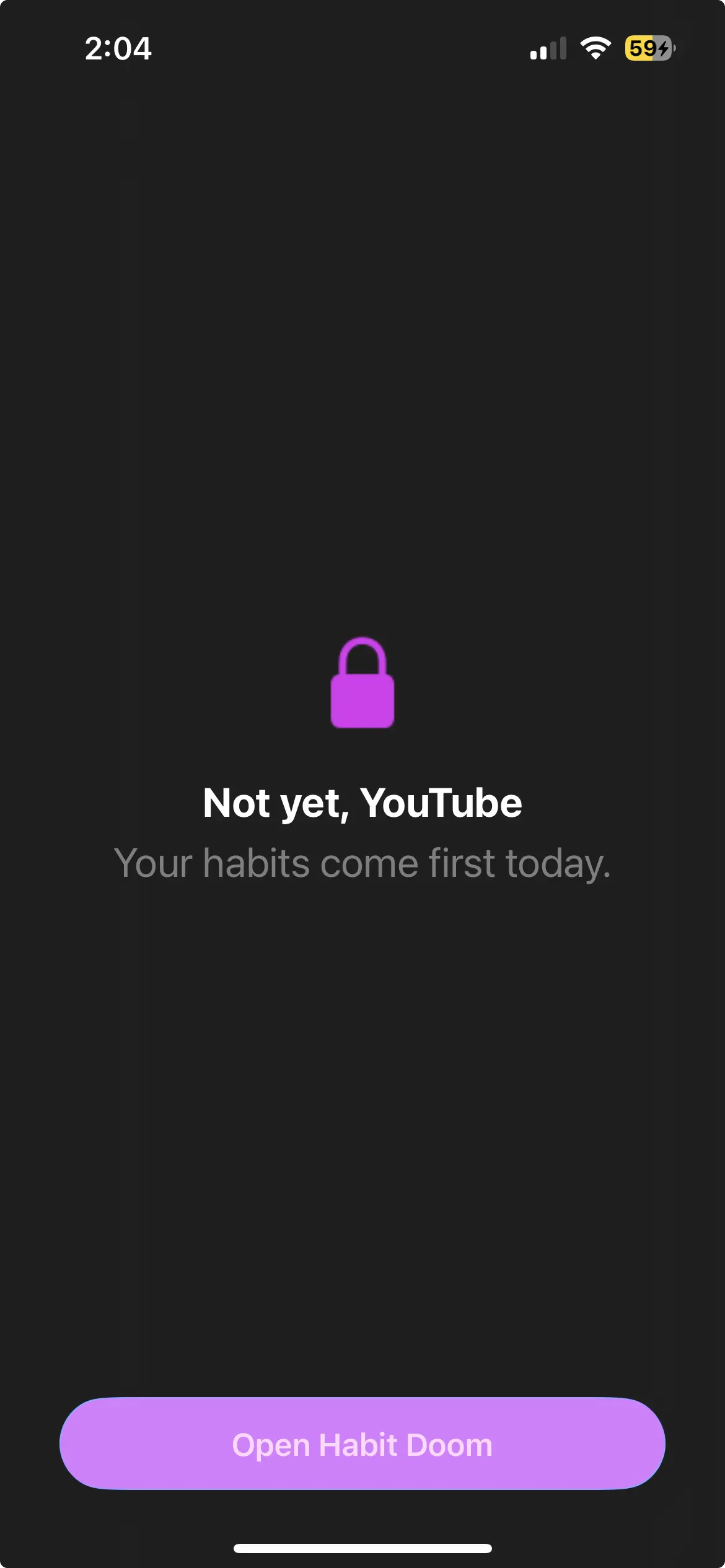
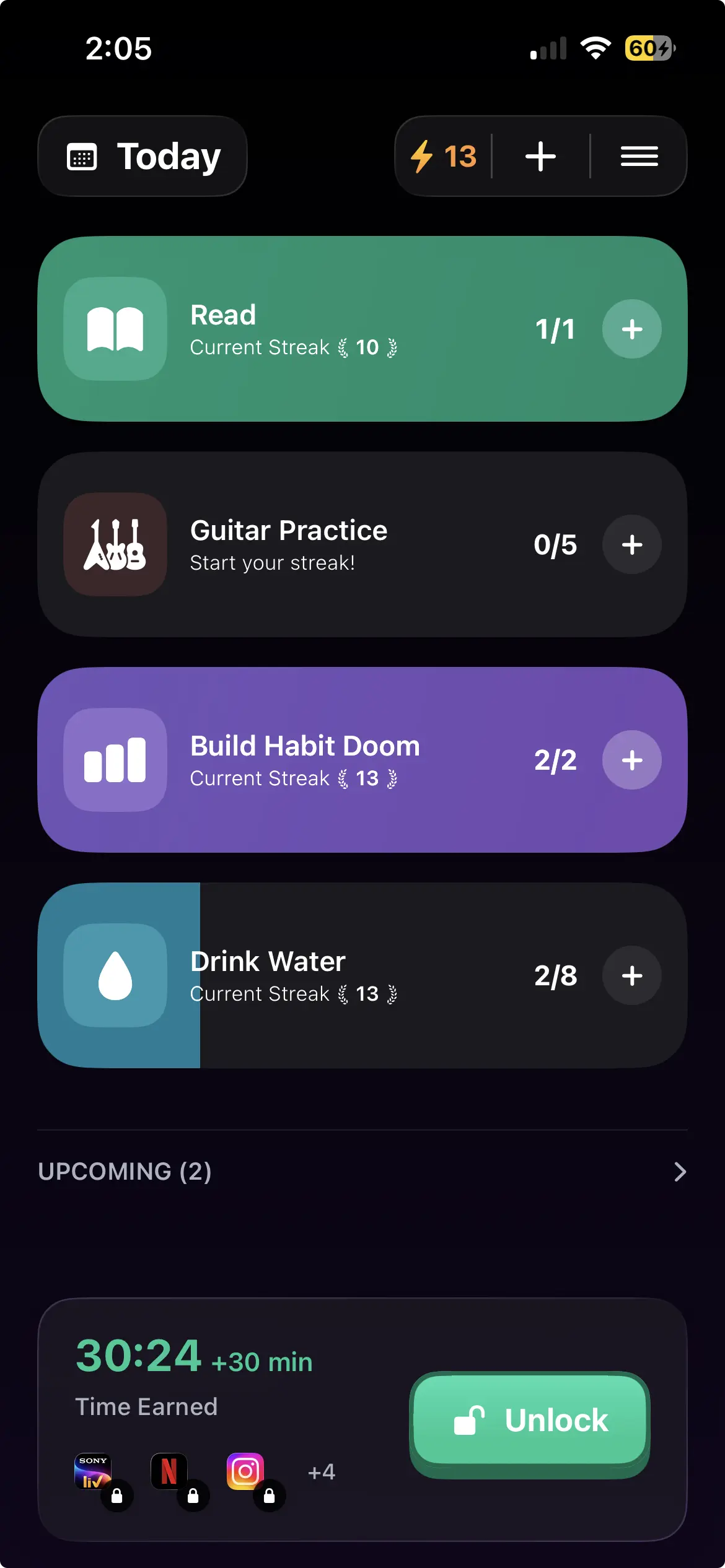
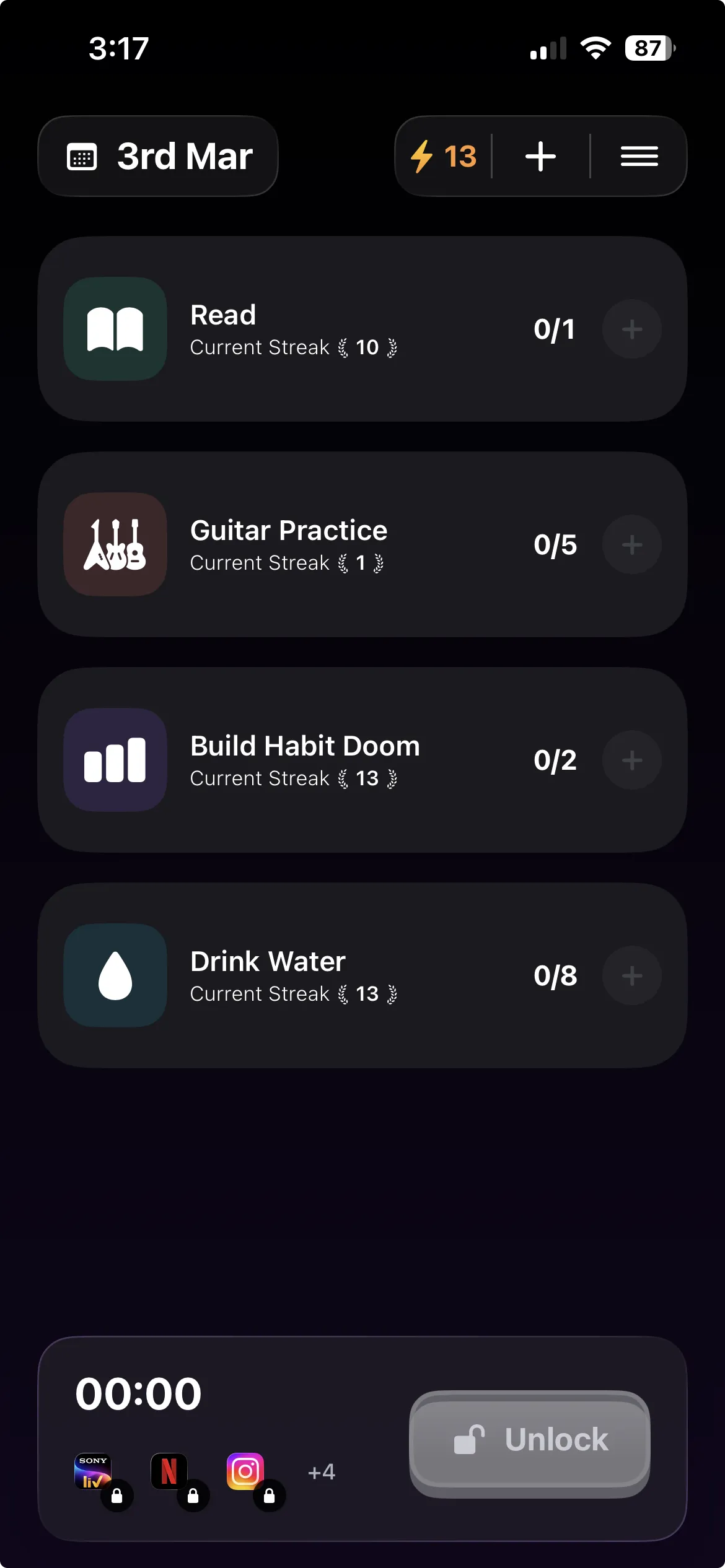
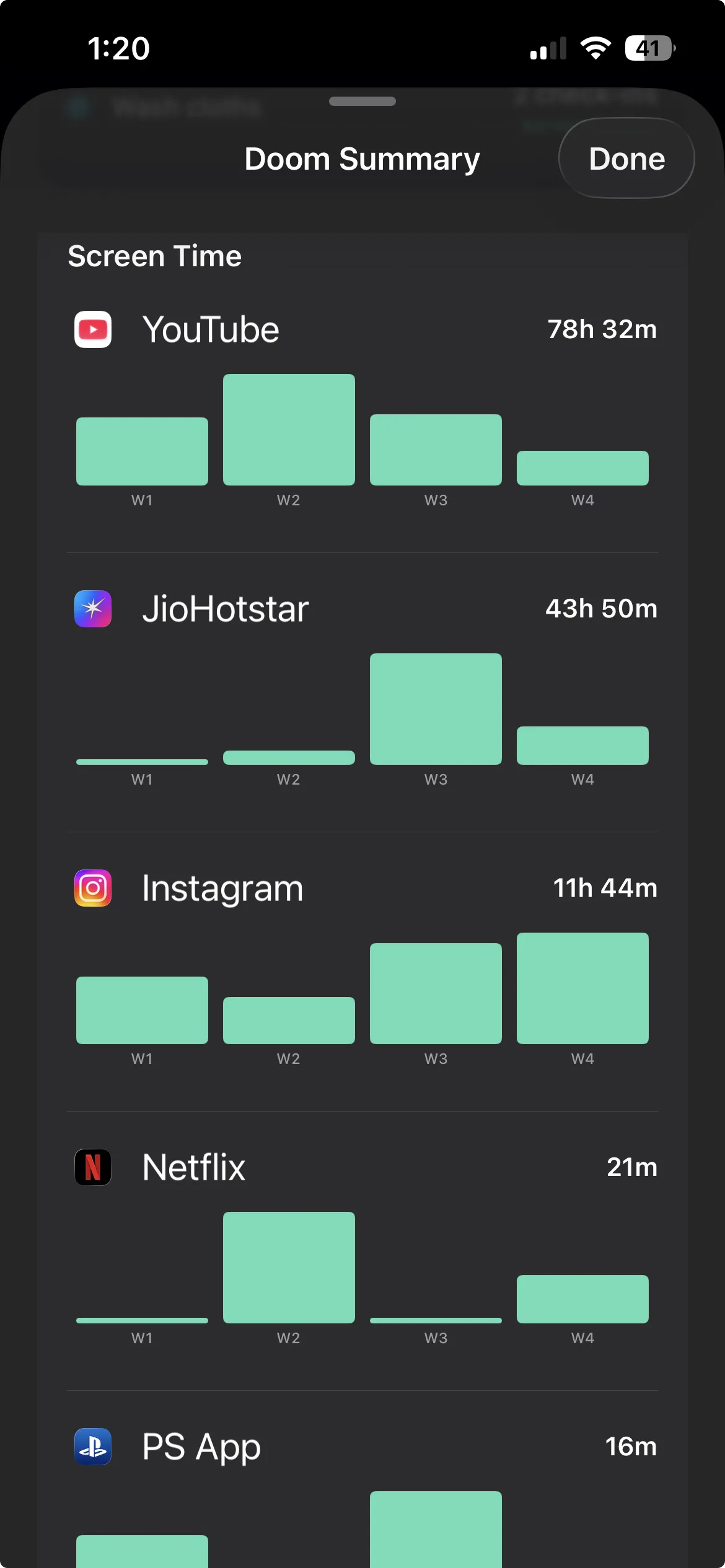
The top rung changes the question. Instead of "what time is it," the lock asks "did you do what you set out to do." This is Habit Doom: the chosen apps stay locked until you complete your daily habits, and completing them earns you screen time.
The difference from every rung below it is that the lock is tied to your actual goals rather than to a clock or a willpower check. You pick the apps to lock (Instagram, TikTok, YouTube, whatever your feed is) and you leave the apps you need (WhatsApp, Messenger, work chat) untouched. In the morning the feeds are locked. You do your reading, your workout, your journaling, whatever you defined. As you check them off, you earn access. The thing you wanted to do becomes the key to the thing that was eating your time.
The lock is built to be tamper-resistant: it survives force-quitting the app, restarting the phone, even deleting Habit Doom, because it is enforced at the iOS system level rather than by the app politely asking you to behave. For the part of you that, at 11pm, would reinstall a deleted app or tap Ignore Limit, there is no easy hatch. The earlier write-up on apps that actually block doomscrolling with no bypass covers why that survivability matters.
Habit Doom is free for habit tracking, app blocking, alarms, and streaks. There is an optional Anti-Cheat feature (on-device AI photo verification, free) for people who notice they were tapping "done" without doing the habit, and the core conditional lock costs nothing. The trade-off, honestly stated: this rung asks more of you up front. You have to define habits and check in. If you do not want a goal attached to your screen time, a hard blocker on a schedule is simpler. If the whole point is that your screen time should be earned, this is the rung that does that.
The honest comparison
Each rung trades effort against how well it actually holds. Pick by your real failure mode, not by what sounds strongest.
| Method | Cost | Strength | Bypass | Best for |
|---|---|---|---|---|
| Grayscale + notification pruning | Free | Weak | One toggle | Cutting passive pull and interruptions |
| Apple Screen Time limits | Free | Weak | One-tap Ignore Limit | Mostly self-controlled, want a reminder |
| Delay blockers (One Sec, ScreenZen) | Free / paid tiers | Medium | Wait it out, then proceed | Killing autopilot opens while keeping agency |
| Hard blockers (Opal, Freedom) | Paid | High | Hard within a scheduled window | Time-bound lockouts (work hours, nighttime) |
| Conditional locking (Habit Doom) | Free + optional Pro | High | Tamper-resistant; survives force-quit and uninstall | Tying access to actually doing your habits |
No rung is universally best. Grayscale is real and free; it just will not stop a determined open. Screen Time is built in; its override is its weakness. Delay blockers respect your agency, which is also their ceiling. Hard blockers enforce a clock. Conditional locking enforces a goal but asks you to set one. Read the table as a diagnosis: find the row that matches what actually fails for you, and start there.
How to actually decide
Skip the agonizing. Match your failure mode to a rung.
If your problem is notifications and passive pull, start at rung 1: grayscale plus aggressive notification pruning, free, tonight.
If you have mostly intact self-control and want a nudge, rung 2 (Apple Screen Time) is enough, and it is already on your phone.
If you open apps on autopilot but can stop yourself once you notice, rung 3 delay blockers are the sweet spot: friction that wakes you up without taking over.
If you need the apps genuinely gone during specific windows, rung 4 hard blockers on a schedule.
If you want screen time to be something you earn by doing your actual habits, and you want a lock that does not fold the moment you go looking for a hatch, rung 5 conditional locking.
The common thread across all five: you kept the apps. You kept WhatsApp, you kept work chat, you kept the DMs. You just stopped letting the feed take whatever it wanted. That is the whole case for limiting over deleting, and it is the reason this works when "just delete it" never did.
Habit Doom locks your distracting apps until your daily habits are done, and leaves the apps you need alone. Free on the App Store.
Frequently Asked Questions
Keep Reading
Try Habit Doom
Lock your distracting apps. Complete your habits. Earn your screen time. It takes 30 seconds to set up.
Download Free