

Lock TikTok Until the Habit Is Done

 X
X LinkedIn
TikTok is not a normal app to lock, and pretending it is will make you fail. Instagram and YouTube have feeds you eventually reach the end of. TikTok's For You page does not. It is an autoplay loop with no bottom, tuned per swipe, designed so the next video is always slightly better than the impulse to stop. US users average 52 minutes a day on it, per Backlinko's 2026 TikTok statistics, and for Gen Z the daily numbers run far higher.
That design has a specific consequence for blocking it: time-based limits lose. A 30-minute cap only matters at minute 30, and at minute 30 you are deep in the loop and will tap whatever button makes it go away. If you searched "app to lock TikTok on iPhone," the real question is not "which app blocks it" but "which lock survives the loop." This guide answers that.
The loop is the problem, not the app
Most TikTok-blocking advice treats it like any other distraction: set a limit, add a delay, done. But TikTok's whole engineering is built to defeat exactly those interventions. So it is worth naming the two separate failure modes first.
The open. You pick up your phone and tap TikTok without deciding to. Pure reflex, the same loop covered in why you keep picking up your phone. This one is beatable with friction.
The loop. You are already in. The feed is feeding you. "One more" becomes forty more. This is where time limits die, because the limit fires mid-loop and the path of least resistance is to dismiss it.
Different tools solve different halves. Friction apps are great at the open and useless against the loop. Time limits pretend to address the loop but fold at the trigger moment. The only durable answer to the loop is to never let it start until a condition outside the loop is satisfied. That is the conditional-lock approach, and it is the one thing TikTok's design cannot route around.
The methods, ranked by how they handle the loop
| Method | Handles the open | Handles the loop | The catch |
|---|---|---|---|
| Apple Screen Time | Weakly | No | One-tap Ignore Limit ends it |
| One Sec | Yes | No | Delay fires before, not during |
| ScreenZen | Yes | No | Friction is on open, not the feed |
| Opal | Yes, in sessions | Partly, while a session runs | Tied to the clock, not to action |
| Habit Doom | Yes | Yes | Requires you to actually do your habits first |
Read the loop column. Only the conditional lock holds, because it does not depend on you choosing to stop once you have started. It stops you from starting until you have earned it.
What each app actually does
Honest descriptions, because each is the right answer for someone.
Apple Screen Time is free, built in, and fine as a loose cap. Set a TikTok limit and downtime hours. The catch is the Ignore Limit button on the block wall: one tap, no condition, more time. After an hour in the For You feed, that tap is automatic. More in the Screen Time API guide.
One Sec inserts a breath before TikTok opens. You tap the icon, it makes you pause and reconsider. This genuinely kills reflex opens, the "open" failure mode. It does nothing once you are scrolling, because the friction is on the door, not the room.
ScreenZen works similarly: a configurable delay and friction screen before the app launches. Excellent for the open, by design silent about the loop.
Opal blocks apps during focus sessions and schedules, and is harder to bypass than Screen Time. If your goal is "no TikTok 9 to 5," Opal is a strong pick. The lock is tied to time elapsed, not to whether you did anything with that time.
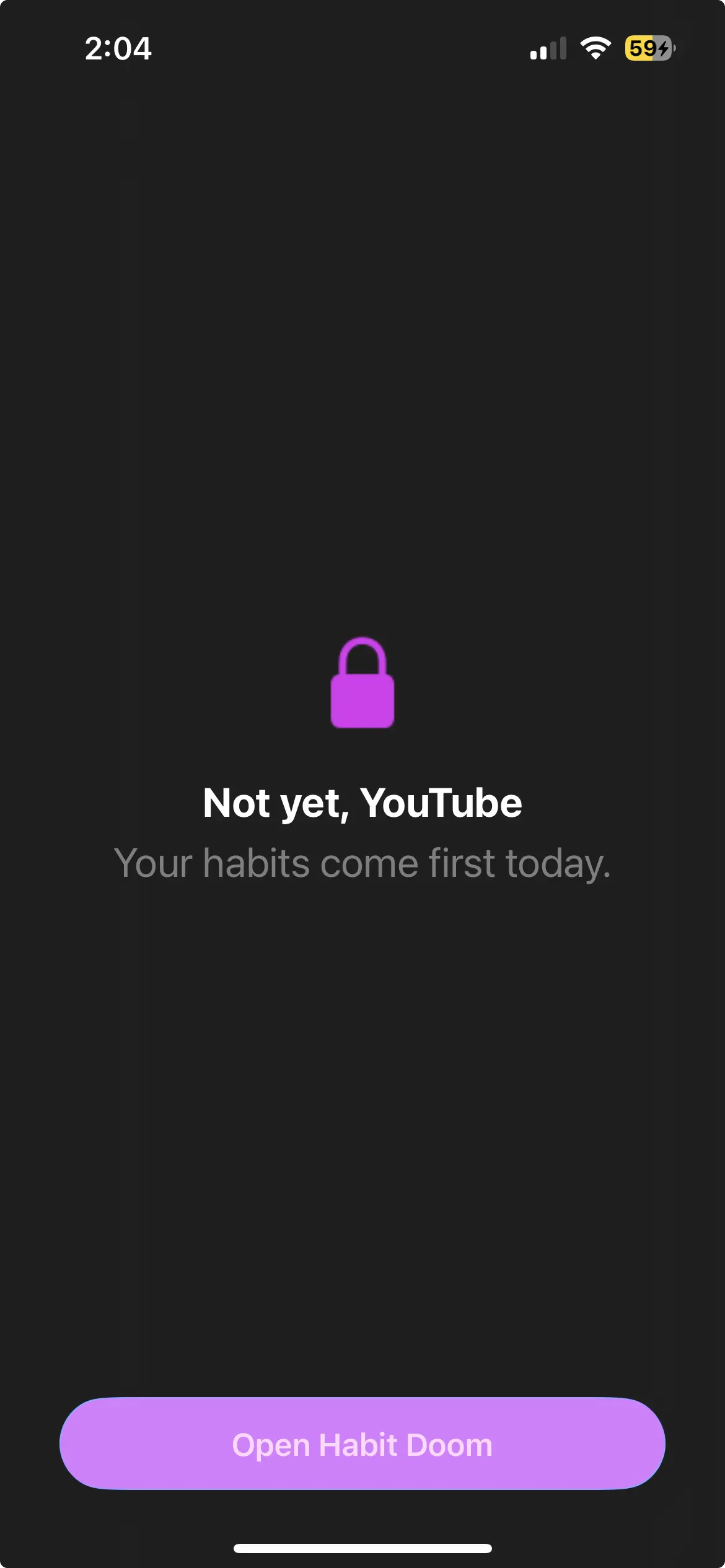
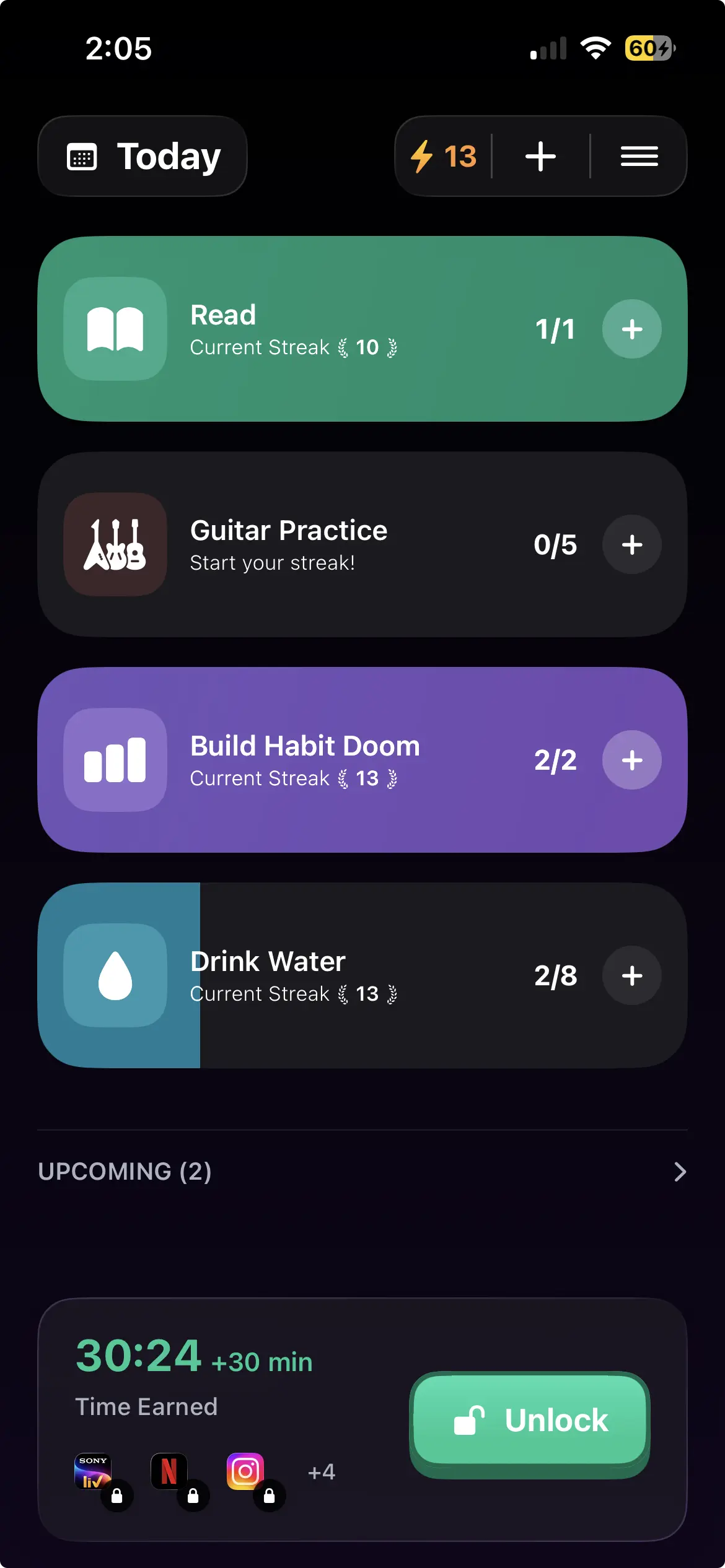
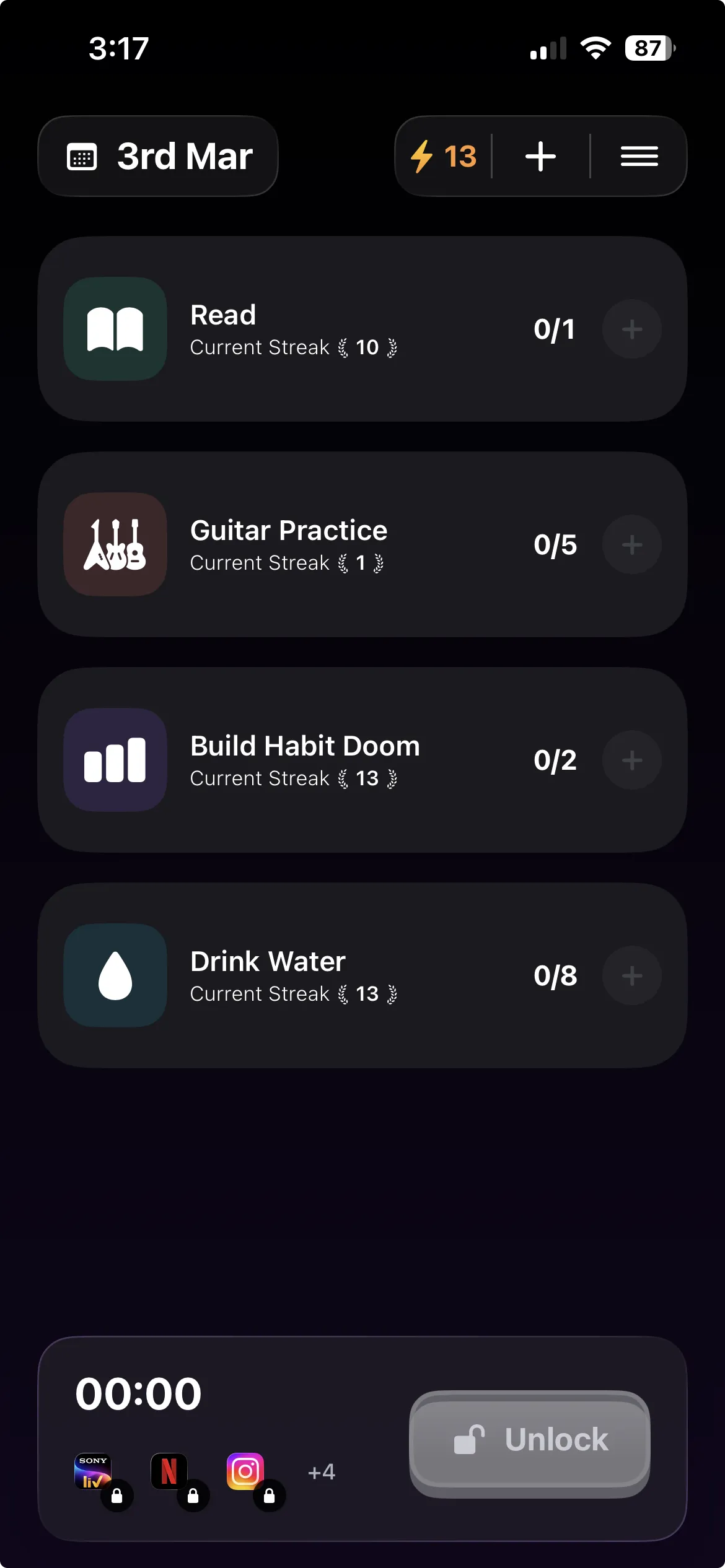
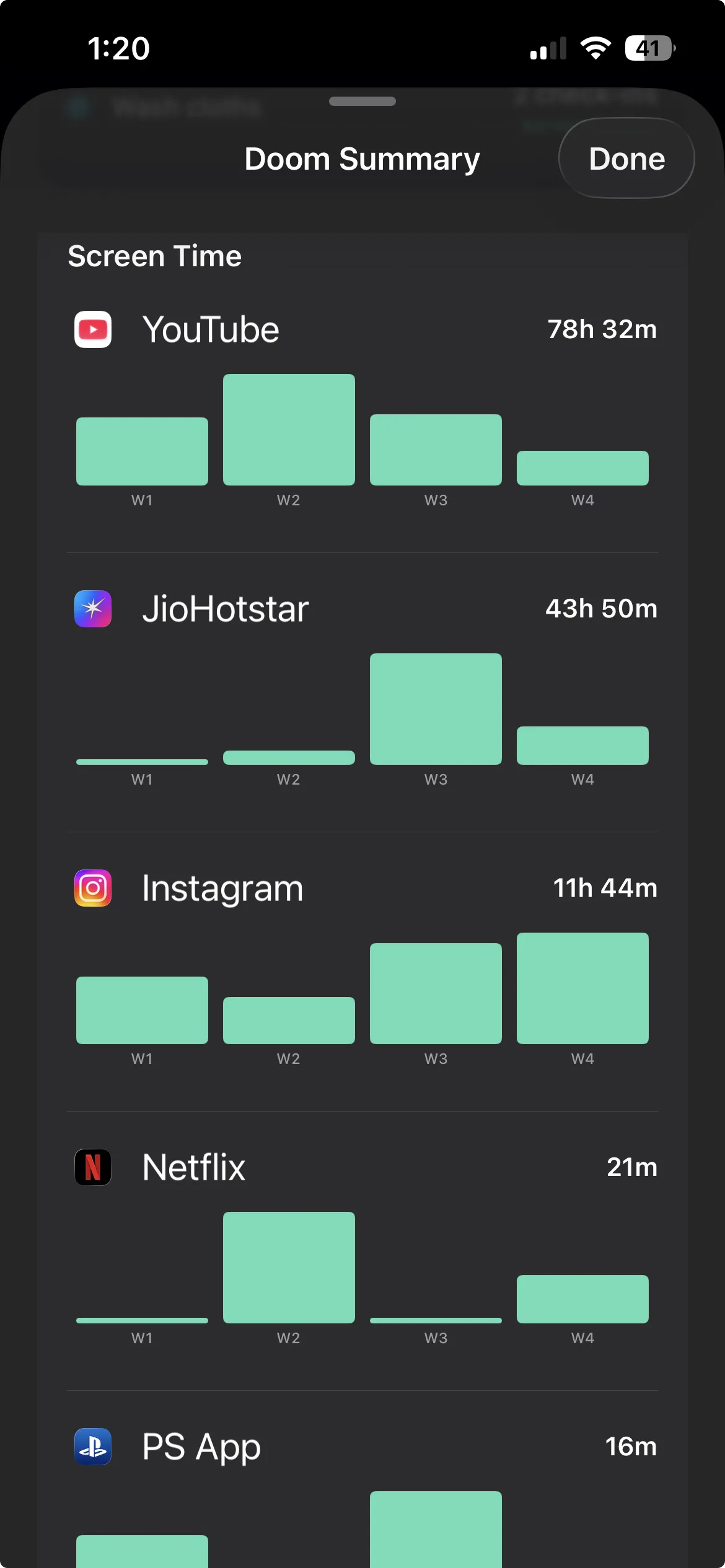
Habit Doom locks TikTok through the iOS ManagedSettings layer until your daily habits are complete. Not a timer, not a delay. TikTok will not open until you have read the chapter, done the workout, finished the study block, whatever you set. The lock survives force-quit and uninstall, and Hard Mode removes any early unlock. This is the only method here that fights the loop by never letting it begin on borrowed time.
How conditional locking beats the For You feed
The reason this approach works on TikTok specifically is that it moves the decision out of the loop.
Every time-based tool asks you to make a good choice while you are inside the most addictive feed ever shipped. That is a losing position. Your prefrontal cortex is not winning an argument against an algorithm that has had a thousand swipes to learn what stops your thumb.
Conditional locking moves the choice to before the loop, when you are not yet hooked. You set the rule once: TikTok stays locked until the habit is done. In the morning, calm and clear-headed, you do the habit, and TikTok opens. You never have to win the willpower fight at the worst moment, because the lock already won it for you at the best one. This is the core idea behind task-based app blockers: tie access to completion, not to the clock.
For a concrete student version of this, lock TikTok until you're done studying walks through the homework setup.
Why the lock has to be tamper-resistant
A lock you can undo in three taps is not a lock for TikTok, because the loop will absolutely talk you into those three taps.
Habit Doom enforces the block at the iOS ManagedSettings level, the system API for parental controls, rather than from the app's own foreground process. If you are locking it down for a kid instead of yourself, see blocking TikTok with parental controls for the Family Sharing setup. Two consequences:
- Force-quitting does nothing. Swiping Habit Doom out of the app switcher does not release TikTok.
- Deleting does not hand it back instantly. Removing the blocker is not a one-tap escape the way flipping an in-app toggle would be.
Hard Mode goes further and removes the early-unlock options entirely, for people who know the loop will negotiate. The full engineering write-up is in apps that actually block doomscrolling with no bypass.
Closing the fake-check-in loophole
If finishing a habit is what unlocks TikTok, the obvious cheat is tapping "done" without doing it. Habit Doom's own users asked for this to be fixed.
Anti-Cheat (free, June 2026) handles it. Checking in a habit opens the camera; you snap a live photo of the real thing; an AI model running entirely on your iPhone confirms it matches, usually in under half a second. No upload, no account, nothing collected. Details in the habit tracker you can't lie to. It makes the habit, not the tap, the only key to TikTok.
Five-minute setup
- Install Habit Doom and grant Screen Time permission. That permission is what lets it block at the iOS level. No account needed.
- Add TikTok to the locked list. Add Instagram and YouTube too if they feed the same loop.
- Set one to three daily habits. Free tier covers up to 3. One real habit beats five aspirational ones.
- Pick Standard or Hard Mode. Hard Mode if you know the loop will argue with you.
- Sleep on it. Tomorrow, TikTok stays shut until the habit is done.
The honest take
Pick by failure mode, not by hype. If you mostly open TikTok on reflex and stop fine once reminded, a friction app like One Sec or ScreenZen is the lighter, correct tool. If you want clean work hours, Opal's sessions are excellent. If a fixed cap is all you need, Screen Time is free and already on your phone.
But if your real problem is the loop, those minutes that vanish after you are already in, no timer will save you. TikTok is built to beat timers. The lock that requires a completed habit before the feed opens at all is the one designed for the way TikTok actually works. It does not ask you to resist the For You page. It keeps you out of it until you have earned your way in.
Habit Doom is free to download on the App Store, with full locking and Anti-Cheat free for everyone.
Frequently Asked Questions
Keep Reading
Try Habit Doom
Lock your distracting apps. Complete your habits. Earn your screen time. It takes 30 seconds to set up.
Download Free